It is a Friday night, the family has chosen a movie and you are looking at a lifetime cost of 749.99 on the software that plays the movie. That's the amount that Plex began to charge on July 1, 2026. The good news: you can run the same files in the same folders on the same server on a free, open-source server, and it can be ready by Sunday afternoon. This is the complete switch, end to end.
Quick Answer: It takes approximately one afternoon to switch. Start Jellyfin in a docker container, and point it to the same media folders that Plex already scans, and reconfigure your users and TV apps. You don't have to move your files, the software is free to use, and you can have Plex running simultaneously until you is satisfied.
Jellyfin vs Plex: What You Get for Free and What You Don't
The two applications are similar in the sense that they perform a similar basic task. They access the films, programs, and songs on your computer or NAS, and deliver it to your television, mobile phone, and tablet. The difference is who pays for what.
Plex provides the fundamentals free of charge and extras at a fee. Jellyfin does not have any paid tier whatsoever, meaning that it has all the features on day one.
| Feature | Plex | Jellyfin |
|---|---|---|
| Price | Free tier, then $6.99/month, $69.99/year, or $749.99 lifetime | $0, always |
| Company account required | Yes | No |
| Hardware-accelerated streaming | Paid (Plex Pass) | Included |
| Streaming away from home | Paid (Plex Pass or a separate plan) | No fee, but you set up access |
| Over-the-air DVR | Paid (Plex Pass) | Included, needs a tuner and setup |
| Watchlist and streaming discovery | Yes | No |
| Source code | Closed | Open source |
| Ease of setup | Easier | A bit more hands-on |

Plex remains smoother and its discovery features are difficult to rival. Jellyfin is more practical and some of its applications are still referred to as beta ( Source: Jellyfin project downloads page). Most home libraries will find the trade worth the price, provided that you are not too price-conscious to be price-controlling, and are not too polish-conscious to be price-controlling as well.
Plex Remote Watch Pass and the Real Cost of Staying Put.
On July 1, 2026, a new Lifetime Plex Pass jumped from $249.99 to $749.99, according to Plex's official price announcement (Source: Plex official blog). Prior to April 29, 2025, the same pass used to cost $119.99 (Source: Plex official blog). Within a little more than one year the price increased more than sixfold.
The monthly and annual plans remained the same: $6.99/month or 69.99/year. Plex also introduced a five-year plan of 249.99 (Source: Plex official blog). Lifetime, now do the math. Divided 749.99/69.99 = approximately 10.7 years before it is better than the annual plan ( Source: arithmetic on the prices published by Plex ).
What do you get for that money? The premium subscription provides access to hardware accelerated streaming, mobile downloading and on-air DVR (Source: PCWorld). Your library away from home can require either the pass or Plex standalone remote-streaming plan which costs either $2.99 a month or 29.99 a year ( Source: Plex plans page; PCWorld).
In the case you have a lifetime pass already, Plex claims that nothing will happen to you ( Source: Plex official blog). It is a very sensible option to remain in place. However, when you are considering purchasing one, or you spend money every year on it and moan about it, now is the time to consider the free alternative.
Is Jellyfin Free? The Honest Answer
Yes. Jellyfin is a free and open-source application that does not require a subscription, a license key, or a premium version. The official apps are free to download and use. Even the Roku application, which can have a cable or satellite alert due to a restriction of the store, does not require any form of subscription (Source: Jellyfin project downloads page).
However, there are real costs of free software. The amount you will actually spend is as follows:
- Hardware: an old PC or a small mini PC or a NAS that is left on through out the day. We have home server basics that are beginner-friendly and can assist you in making a choice.
- Electricity: not zero, small when a small machine is required.
- Time: expect to spend an afternoon setting up, with periodic updates.
- Additional extras: some third parties sell paid upgrades. The official apps don't.
Nor is there a company in the background of Jellyfin to appeal to. It is constructed by volunteers, and is assisted by community forums and the documentation. The docs are usually all most beginners require, but it is a tangible difference to a commercial product.
How to Install Jellyfin With Docker (Step by Step)
Docker maintains Jellyfin in a separate clean container, and hence will not interfere with the rest of your computer. It can be updated or deleted easily as well. You will require a computer that will keep on, Docker and Docker Compose installed (Using the official installation guide of Docker), and your media in normal folders. A NAS is also effective in this case.
Your files don't move. Jellyfin supports the Plex read folders, and can run simultaneously. Plex and Jellyfin occupy port 32400 and 8096 respectively, which means they will not conflict.

Step 1: Prepare Your Folders.
Make two small folders to where Jellyfin will store their own data, e.g. /opt/jellyfin/config and /opt/jellyfin/cache. Next record the entire location of your media, e.g., /mnt/media. Enter id command to view your user and group numbers. You shall need them later.
Step 2: Create the Compose File
Create a file named compose.yaml and put in the block below. Use your own paths and IDs.
services:
  jellyfin:
    image: jellyfin/jellyfin
    container_name: jellyfin
    user: 1000:1000
    ports:
      - "8096:8096"
    volumes:
      - /opt/jellyfin/config:/config
      - /opt/jellyfin/cache:/cache
      - /mnt/media:/media:ro
    restart: unless-stopped
Two details matter. That folder is read-only (the :ro on the media line) and will never be changed or deleted by Jellyfin. And restart: unless-stopped re-boots the server. Begin by docker compose up -d (Source: Jellyfin project container documentation).
Step 3: Run the Setup Wizard
Browse to open port 8096 on your-server-ip. The wizard will create an admin account, add your libraries, and will ask you to choose a metadata language. Choose English and United States.
Target each library to its folder, e.g., /media/movies and /media/tv. Jellyfin then downloads posters and descriptions automatically which in a large collection can be time-consuming.
Providing Plex recognizes your files, Jellyfin should as well. They both like such names as Movie Name (2010).mkv. In case of missing, repair the file name initially.
Jellyfin Hardware Transcoding Setup for Intel, NVIDIA, and AMD
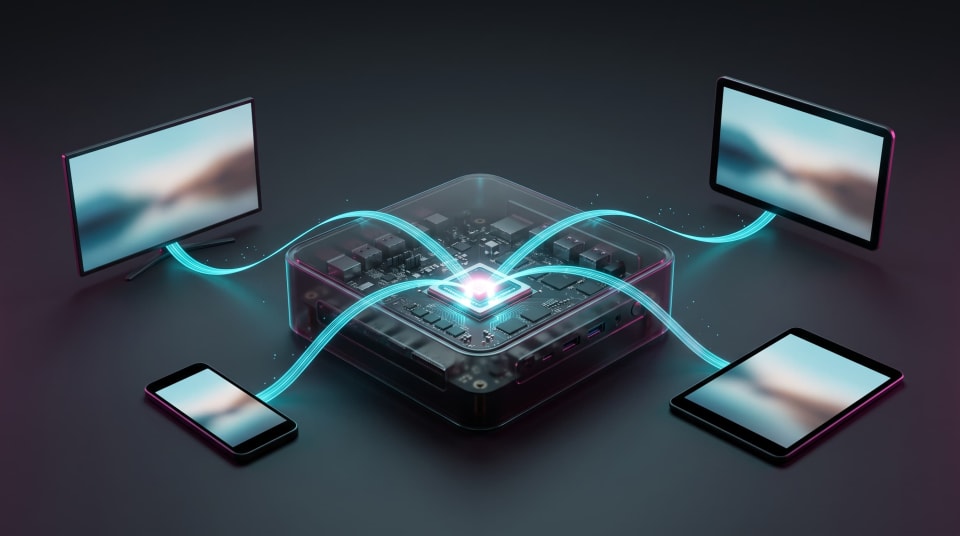
Transcoding refers to the server changing a video on-the-fly when the device is not capable of playing the original file, or your connection is slow. Without a graphics chip to do the work, your processor is left to do all the work, and a couple of streams can bring a small machine to its knees. Plex is restricting this feature with its paid pass. Jellyfin includes it.
Jellyfin is compatible with Intel Quick Sync, NVIDia NVENC, AMD AMF, VA-API on Linux, and Apple VideoToolbox. It also cautions that a Raspberry Pi 5 should not be used in this task, as the board lacks hardware video encoder (Source: Jellyfin project documentation).
The Intel route, which is most popular among mini PCs, small:
- On the host, run ls /dev/dri. A device called renderD128 should be visible.
- To add the lines to your service in the compose file, restart the container after adding the lines.
- Jellyfin, open Dashboard, Playback, Transcoding. Pick Intel QuickSync (QSV), select the codecs that your chip can decode and store.
- Test it. Watch a video on your phone and coerce a lower quality. The stream should be labeled as hardware transcoding in the dashboard.
devices:
- /dev/dri/renderD128:/dev/dri/renderD128
In case Jellyfin reports a permission error, add your render group ID to the service with group_add entry.
NVIDIA users require the NVIDIA Container Toolkit in order that Docker can pass the graphics card to the container. Select NVENC in this menu then. VA-API is mostly chosen by AMD users running Linux. Individual vendors have a step-by-step page in the Jellyfin hardware acceleration documentation.
Another hint: the optimum transcode is none. Most TVs and phones have a direct playback of files in popular formats, such as H.264 video with AAC audio. Our mini PC hardware guide articles discuss chips that have powerful video engines, in case you are still shopping.
How to Move Plex Watch History to Jellyfin

Both Plex and Jellyfin maintain their own logs of what you have watched, and neither has a one-click import. The gap is addressed by community-built tools. Choose one of these routes and try it with a single user initially, and backup your config folders prior to beginning.
Option 1: Use Trakt as the Go-Between
Trakt is a free online service that can be used to monitor what you watch. PlexTraktSync is a community tool that uses your Plex history to create a Trakt account. It is then downloaded into Jellyfin via a Trakt plugin ( Source: Jellyfin community forum). It requires some additional steps, but you will have a portable record that can be used in servers as well in the future.
Option 2: Sync Directly With a Community Tool
Other projects like JellyPlex-Watched and WatchState are linked to the servers and the played status is copied across. They compare items based on their file name and online database identifiers. According to the JellyPlex-Watched maintainers, the matching is not flawless though it works in the majority of cases (Source: JellyPlex-Watched project on GitHub).
Whichever route you pick, line up your user names. You can create Jellyfin accounts under the same names as your Plex users, or use the name-mapping option of the tool. A few stragglers are to be expected, as some users have reported instances where they have watched an episode that will not be marked. Check favorite shows afterwards.
Fancy a blank canvas? That works too. The Next Up row and a manual scroll through a few series suffices to numerous families using Jellyfin.
Final Steps: TV Apps, Users, and Turning Plex Off

Add your people. Dashboard: Click on Users and make an account of all the people in the house. Filter the content the kids see to a certain level so that they only get to see the appropriate titles.
Install the apps. Jellyfin supports official apps on Android, iPhone and iPad, Android TV and Fire TV, Roku, LG webOS and Xbox (Source: Jellyfin project downloads page). The official version on Apple TV is Swiftfin, which Jellyfin continues to refer to as beta. Test all TVs, then say it is time to tell the family that it is time.
Plan to access remotely. And don't simply open port 8096 on your router. The easiest way that is safest is by a personal VPN such as WireGuard or Tailscale. In case you would prefer to use a public address, place an HTTPS reverse proxy before the server. Home network security guidance is available in plain-English at CISA ( Source: CISA ) and our privacy and security guides can assist you in locking it down.
Cut over slowly. Run both servers for a week or two. Stop the Plex container when they are all happy. Have its data folder duplicated over a month or so just in case you will require any. Like to cancel your payment before your next renewal date, pay monthly or annually.
References
- Plex Official Blog – New Lifetime Plex Pass Pricing: Official announcement on the $749.99 lifetime tier and 5-year plans.
- Plex Official Blog – Important 2025 Plex Updates: Historical pricing details ($119.99 lifetime) prior to April 2025.
- Plex Support – Subscription Plans & Remote Streaming: Pricing and feature breakdown for standalone remote access.
- PCWorld – Plex Pass’ $750 Lifetime Price Breakdown: Analysis of break-even timelines and out-of-home streaming restrictions.
- Jellyfin Documentation – Container Installation: Official guide for Docker Compose setups and persistent storage volumes.
- Jellyfin Documentation – Hardware Acceleration: Supported transcode drivers (QSV, NVENC, AMF, VA-API) and device limitations.
- Jellyfin Project – Client Downloads & Platform Support: Official app availability, Roku store notes, and Swiftfin beta status.
- GitHub – JellyPlex-Watched Repository: Community tool documentation and watched-status matching limitations.
- Jellyfin Forum – Migrating Watch History via Trakt: Community setup guides for PlexTraktSync and Trakt plugins.
- Cybersecurity and Infrastructure Security Agency (CISA) – Home Network Security Guidance: Best practices for home server exposure and secure remote networking.
Conclusion
You do not have to start all over again when leaving Plex. Your files remain in place, Jellyfin runs alongside the Plex as you test, and the entire swap is a weekend of leisure. You get all the features, including hardware transcoding, at no charge, instead of the $749.99 lifetime price. Ready for your next project? Install the following Media Servers guide to give your new installation automatic library organization and an uncluttered home screen.