
It's a Saturday morning, the coffee is hot, and the little server in your garage or hall closet is quietly running Plex, Home Assistant, and the family photo backup. Then you see that the version it has does not get security patches anymore. Don't panic. This guide will take you through the steps to move to the current release safely in plain English, and with a backup plan at each step.
Quick answer: Back up your guests and host settings, run the built-in readiness checker in Proxmox and set the package sources of Debian 12 "Bookworm" to Debian 13 "Trixie" instead. Thereafter run a complete upgrade of distributions and reboot. You will need at least version 8.4.1 or more and the upgrade itself is often over in under an hour on a single home server.
Proxmox 8 End of Life: What It Means for Your Homelab
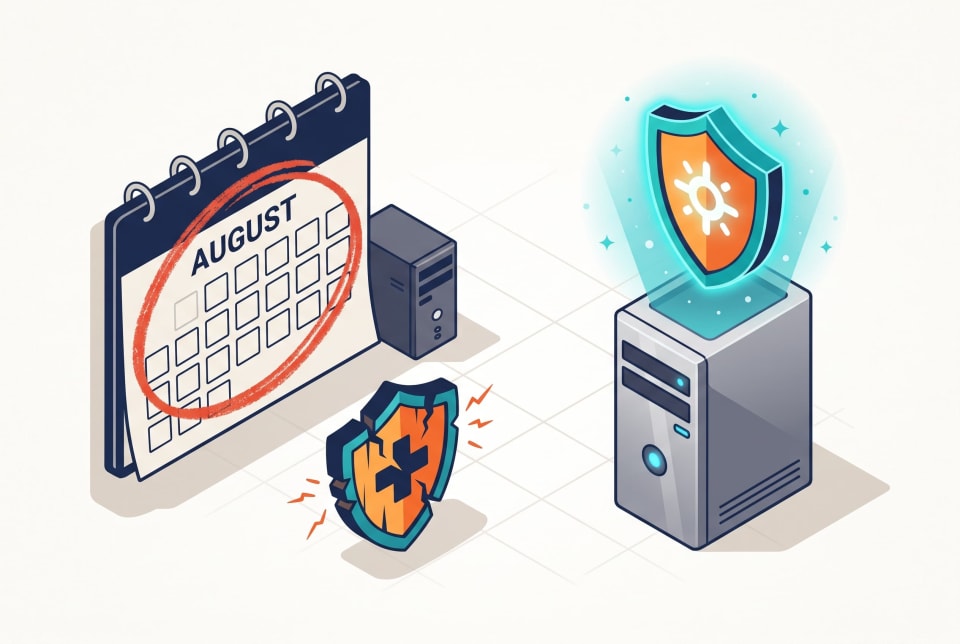
The official lifecycle table of Proxmox provides the last day of support of the 8.x branch in August 2026, based on its foundation Debian 12 "Bookworm" (Source: Proxmox VE official documentation). It was a date that has been. Your server won't shut off, and your virtual machines will keep booting. The safety net is what goes away.
This is what happens when a release goes out of support:
- None of the security patches of the hypervisor, Linux kernel, and the underlying operating system.
- No bug fixes, and so strange hardware interactions and edge cases are yours to debug.
- Dying community support, as the answers on forums are more and more assuming that you are on the latest release.
- Increasing tension with new tools, guides, and add-ons that are aimed at the new version.
What is the importance of this at home? A homelab is seldom shut off to the world. Assuming you are forwarding a port, running a reverse proxy or streaming media to your family, your server is accessible somewhere. Basic defenses The guidance on cybersecurity by the United States of America always prioritizes patching as one of the most effective basic defenses (Source: CISA).
The positive news is that the fix is well documented. There is no need to wipe the machine or re-create your VMs. New to virtualization? Read through our beginner guide to Proxmox first, to become familiar with the lingo.
Proxmox VE 9 What's New: Features Homelabbers Care About
The ninth generation of Proxmox was released in August 2025 based on Debian 13 "Trixie" and each point release since then has brought something useful ( Source: Proxmox VE release notes). The version that is currently in release is 9.2, released May 21, 2026. It comes with Linux kernel 7.0, QEMU 11.0, LXC 7.0 and ZFS 2.4 ( Source: Proxmox Server Solutions press release). On the official roadmap of Proxmox, you can trace all the changes.
The features in the headline would translate to a home set-up like this:
| Feature | Arrived in | Why a homelabber cares |
|---|---|---|
| Snapshots on thick-provisioned LVM storage | 9.0 | Safer experiments on more storage setups |
| ZFS RAIDZ expansion | 9.0 | Add a disk to an existing pool without rebuilding it |
| Redesigned mobile-friendly interface | 9.0 | Check on your server from your phone |
| OCI images as container templates | 9.1 | Easier to spin up app containers from standard images |
| Custom CPU models in the web interface | 9.2 | Fewer command-line edits when hardware differs |
| Dynamic load balancer, WireGuard-based network fabrics | 9.2 | Mostly useful for multi-node clusters |

But when you have just one mini PC, there will be no difference in the load balancer. The actual motives to migrate are the updated kernel and virtualization stack, hardware support and above all the ongoing security patches. The additional scheduling tools are most advantageous to cluster owners.
Is Proxmox 9 Stable for Homelab Use?
Yes, to the greater part. Version 9 has been out for over a year with several point releases behind it, and Proxmox hasn't announced an end date for it yet (Source: Proxmox VE official documentation). Quite a contrast to launch week, when early adopters ran into rough edges.
Stable does not imply risk free, however. Proxmox community forum reports indicate the same few trouble spots recurring time and again ( Source: Proxmox community forum, user reports):
- Sources of Debian packages that did not change to the new codename.
- Containers that are old and were built on distributions with systemd 230 and above that no longer will run (Source: Proxmox VE upgrade wiki)
- A boot-loader meta-package which the readiness script requests you to remove first.
- Name of network interfaces which reconfigure after reboot and leave the server inaccessible until you repair the config.
Note that none of these is a defect of the release itself. They are holes in preparation, and a keen checklist will almost eliminate them.
Now is the time to upgrade your server when it is accessable over the internet, is the server that runs services that you need such as those to support your family or you have backup files that you have confidence in. Add an additional day in the first place, in case you rely on hardware passthrough, like a graphics card, a Coral accelerator, or an HBA card. Find your hardware in the forum, and hopefully test on a spare computer.
Proxmox 9 Upgrade Checklist: What to Do Before You Touch Anything
Most failed upgrades are really failed preparation. Spend 30 minutes here and the rest goes smoothly. Pick a quiet Saturday morning, not the hour before the big game.

| Check | What you need | Why it matters |
|---|---|---|
| Current version | 8.4.1 or newer | Required starting point (Source: Proxmox VE upgrade wiki) |
| Free root space | 5 GB minimum, 10 GB+ recommended | Downloads and unpacking need room (Source: Proxmox VE upgrade wiki) |
| Power protection | A battery backup (UPS) | A power cut mid-upgrade can leave packages half-installed |
| Console access | Monitor and keyboard, or IPMI | If the network drops, you can still get in |
| Ceph (if you use it) | Already on Squid 19.2 | Required before switching (Source: Proxmox VE upgrade wiki) |
| Old containers | None built on systemd 230 or older | They won't start afterward |
| Backup server | Version checked against upgrade notes | Avoids mismatches |
Back up in layers: The first step is to save all VMs and containers in another drive or computer, and you can do it with the in-built Proxmox backup tool or your Proxmox Backup Server. Second, the host: guest backups are not the settings of the server, and therefore, it is good to copy /etc/pve, your network configuration, and your storage definition to a safe location. Third, take the time to image the boot drive (when you can spare the downtime). Our pre-upgrade Proxmox backup checklist is a step-by-step guide. Adhere to the 3-2-1 backup rule: three copies, on two different types of media, one of which is offsite.
Lastly, list what you have: all VMs and containers, their IP address, their start order, and passthrough devices. Each Hardware tab will require two minutes in the form of a screenshot, and this can save an hour of guesswork in the future.
How to Upgrade Proxmox 8 to 9 Step by Step
These are based on the official Proxmox upgrade manual, but simplified to work with a single home server (Source: Proxmox VE upgrade wiki). Running a cluster? One node at a time: First read the official page before upgrading it.
To install the Enterprise Linux 8.x release, it is necessary to update your system to the most current release.

Step 1: Update to the Latest 8.x Release
Get the server completely up to date, and make sure that the version indicates 8.4.1 or later.
apt update
apt dist-upgrade
pveversion
In case a new kernel was installed, reboot and proceed.
Step 2: Run the pve8to9 Checker.
Proxmox has a readiness script, which checks your system and reports issues. Check everything before progressing, and read the warnings.
pve8to9 --full
It indicates such things as remaining boot-loader packages, unsupported containers or almost full disk. Re-run until it returns clean.
Step 3: Proxmox upgrade Debian 12 to 13 Change Sources.
The version 9 is based on Debian 13, codenamed Trixie, so your packages need to be migrated out of the old Bookworm codename. Make a duplicate of the existing file, and change the name:
cp /etc/apt/sources.list /etc/apt/sources.list.bak
sed -i 's/bookworm/trixie/g' /etc/apt/sources.list
sed -i's/bookworm/trixie/g/etc/apt/ sources.list.d/pve-enterprise.list
On the free repository rather than a paid subscription? Insert it in the new file format used by Proxmox and disarm any outdated line which still says Bookworm:
cat > /etc/apt/sources.list.d/proxmox.sources << EOF
Types: deb
URIs: http://download.proxmox.com/debian/pve
Suites: trixie
Components: pve-no-subscription
Signed-By: /usr/share/keyrings/proxmox-archive-keyring.gpg
EOF
Look at each file in /etc/apt/sources.list.d to verify that there are no leftovers, and update the Ceph source as well, should you use it. Then upgrade apt update and ensure that it completes without any mistakes. Trixie has a release note in Debian, detailing the changes underneath, should you be interested.
Step 4: Run Full Upgrade.
tmux or screen Start a tmux or a screen session to avoid having a dropped SSH connection disrupt the job. There is no need to use the browser-based shell, as services are restarted during the upgrade.
apt dist-upgrade
Anticipate a scroll of lengthy output and some configuration files prompts. The documentation of Proxmox suggests particular solutions to some of them, which is why you should have the official page open and refer to it whenever you will be asked to provide a particular answer. Your drive speed and internet connection determine how much time you will spend on the total time (Source: Proxmox VE upgrade wiki).
Step 5: Reboot and Check.
Reboot the server, and verify that all is well.
reboot
Once it returns, run the following two commands:
pveversion
pve8to9 --full
In the version number, you should have 9. Close your browser to hard-refresh your browser, then start your VMs and containers one at a time.
Troubleshooting Common Problems After the Upgrade

A limited set of causes can be traced to most of the problems. The following is a brief guide:
| Symptom | Likely cause | What to try |
|---|---|---|
| Web interface unreachable after reboot | Network interface was renamed | Use the local console, check the new name with ip link, and update /etc/network/interfaces |
| A container won't start | Very old distribution inside (systemd 230 or older) | Rebuild the service in a newer container template |
| apt errors on update | Leftover Bookworm or duplicate sources | Comment out old entries and rerun apt update |
| Boot-loader warnings | Extra boot-loader meta-package | Follow the boot-loader section of the official upgrade page |
| GPU or HBA passthrough stopped working | New kernel changed device groupings | Recheck IOMMU groups and passthrough settings |
Should something really go wrong, then there is no straight-forward downgrade button. Your previous backups come in handy there: restore the host based on your drive image, or reinstall and restore guests based on their backups. It is not failure, it is a fallback.
After everything is humming, ensure that your scheduled backups continue running and make an attempt to restore one of your test VMs. Also, when you are there, check the method of accessing the server remotely. Until the web interface is no longer accessible on the internet, install a VPN-based secure remote access to your homelab instead.
References:
- Proxmox Server Solutions GmbH – Proxmox VE Official Documentation & Lifecycle: Details on the version lifecycle, including 8.x support timelines (through August 2026), Debian 12 base information, and version 9 projections.
- Proxmox VE Wiki – Upgrade from 8 to 9 Guide: Official step-by-step upgrade documentation covering minimum version requirements (8.4.1), free space needs, Ceph Squid dependencies, container systemd limits, and repository changes.
- Proxmox VE Wiki – Roadmap and Release History: Official changelogs and feature breakdowns for Proxmox VE updates, including versions 9.0, 9.1, and 9.2.
- Proxmox Server Solutions GmbH – Press Releases: Official announcement regarding the launch of Proxmox Virtual Environment 9.2 with the new Dynamic Load Balancer (May 21, 2026).
- Proxmox Community Forum – User-Reported Upgrade Issues: Unofficial community discussions, troubleshooting threads, and user reports regarding the version 8 to 9 upgrade process.
- Cybersecurity and Infrastructure Security Agency (CISA) – Known Exploited Vulnerabilities & Patching Guidance: Federal recommendations for maintaining secure systems, applying critical updates, and mitigating known exploits.
- Debian Project – Debian 13 "Trixie" Release Notes: Official documentation, core updates, and system changes introduced in the Debian 13 operating system base.
Conclusion
The process of upgrading to the current Proxmox release is not as scary as long as you follow the steps in sequence: back up, run the checker, change your sources to Trixie, upgrade, reboot, and check. It is the preparation that is important, not the commands. The Proxmox backup checklist below is what you should read prior to doing any touching on any setting to ensure that you have a real way out in the event that something goes wrong. Then on a quiet night, go through the above steps and have a supported, safe homelab in years to come.