You are at the Fourth of July cookout on Saturday, and your iPhone says Storage Almost Full, right as the kids queue up to take a group picture. A 2 TB cloud space will be rented at 120 a year ( Source: Google one pricing page). The result of this guide is that you will have a personal photo library that will operate on a tiny box at home, and no monthly bill.
Quick answer: Immich is a free, open-source photo manager which you install on your personal computer at home. You install it using Docker, attach the mobile app, and the app will automatically copy new photos in your phone to your own drive. Prepare 20-40 minutes, a mini PC or spare desktop having 4-6 GB of free RAM and second duplicate copy of your library.
Why Choose a Self-Hosted Google Photos Alternative?
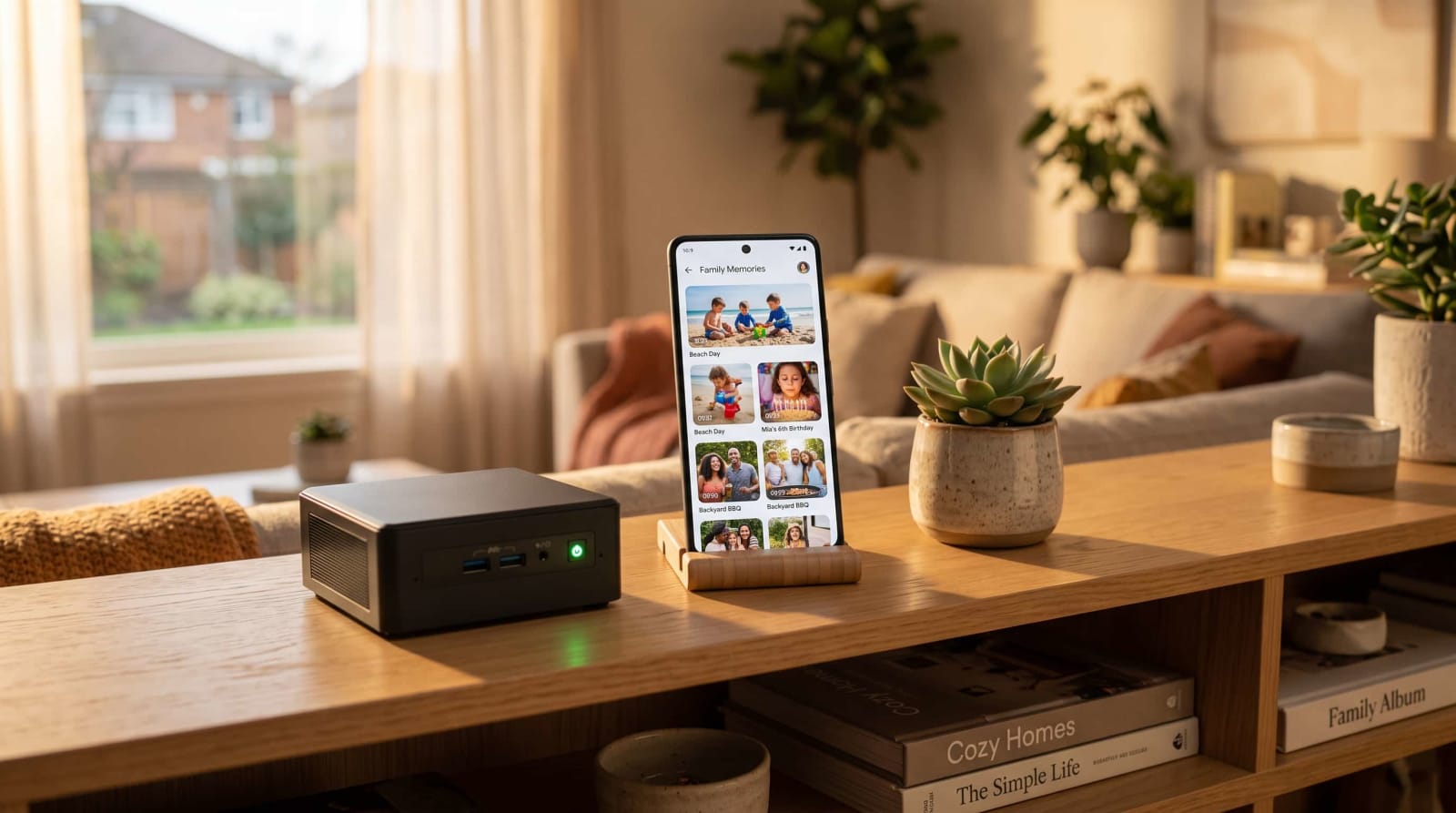
Immich resembles the app you are already using and looks and feels like it does. You get a scrolling time line, albums, a map view, shared links to grandma and a search box that understands such phrases as dog on beach. The only big difference is that your files are stored in a drive that you own.
Three real advantages are bestowed by that ownership:
- No storage fees. You only have to pay once hardware compared to paying monthly.
- Privacy. Your pictures are not scanned to target advertisements or be attached to an account which can be locked.
- Original quality. Nothing is squeezed out to make more room to the disk of some other.
The money is as follows in five years, assuming that you purchase new equipment. You break even sooner, should you reuse an old PC.
| Cost Item | Cloud (2 TB Plan) | Home Server |
|---|---|---|
| Hardware (mini PC) | $0 | ~$200 |
| Photo drive (4 TB) | $0 | ~$100 |
| Backup drive (4 TB) | Included | ~$100 |
| Electricity (~15 watts, 24/7) | $0 | ~$110 |
| Subscription | $600 | $0 |
| 5-year total | ~$600 | ~$510 |

Calculations: 15 watts/year = approximately 131 kWh. Using the average domestic rate of 17cents per kWh in the United States, about 22 a year ( Source: U.S. Energy Information Administration).
It has a trade-off. You are your own IT department, and Immich evolves rapidly, so even the documentation of the project itself instructs people to read release notes prior to any upgrade (Source: Immich official documentation). In case that is alright, continue. You are new to this world, then begin with our home server basics guide.
What You Need: Immich Hardware Requirements and Costs
Positive news: Immich does not require a strong computer. The project posts their minimum and recommended specs and most families are able to afford it with a used office PC. A general rule of thumb is a 64-bit processor, a couple of gigabytes of free memory and high-speed storage of the database.
| Tier | Example Machine | CPU and RAM | Best For |
|---|---|---|---|
| Bare minimum | Older laptop or small single-board computer | 2 cores, 4 GB | One or two users, light use |
| Comfortable | Used mini PC ($100–$250) | 4 cores, 6–16 GB | A family of four |
| Power user | Small desktop with a graphics card | 6+ cores, 16 GB+ | Big libraries, faster scans |

There are two storage rules that are more important than the processor:
- Put the database on an SSD. It has to be run off a slow disk or a network share, which results in errors and slow browsing.
- Select the photos and place them in a large hard disk. Daily spinning is quite alright here.
What size of a drive do you require? An average phone image is 2-5 MB and 1 minute of 4K video can consume a few hundred megabytes. Even a family of 20,000 photos and a stack of videos can get to 300-500 GB. Begin with 2 TB; and think 4 TB of breathing room. 24/7 drives typically cost between $90 and $130 with 4 TB (Source: big U.S. retailer listings).
Continues to make a machine selection? Our hardware guides recommend low-noise and low-power hardware that will not cause your electric bill to skyrocket.
Step-by-Step: Immich Docker Compose Install
Docker installs Immich and all necessary requirements into small containers, therefore, without much manual installing of a database or other services. The whole process takes about 20 minutes. The following are the steps in line with the official install guide, and thus it may have changed since this was authored.
Step 1: Prepare the Machine
Install a recent Ubuntu Server version, and install Docker following the install instructions of Docker. Assign a fixed address to the machine on your router (a so-called DHCP reservation) so your phone can always locate it. Assuming you can, plug it into your router using an Ethernet cable.
Step 2: Download the Files
Go to a terminal and make a project folder:
mkdir ~/immich-app; cd ~/immich-app.
wget -O docker-compose.yml http://github.com/immich/app/immich/releases/latest/download/docker-compose.yml
wget -O .env https://github.com/immich/app/immich/releases/latest/download/example.env
Step 3: Edit the Settings File
Now, enter the .env file into a text editor and modify four values:
- UPLOAD_LOCATION: where the photos will be stored on your big drive (e.g. /mnt/photos/library)
- DB_DATA_LOCATION: a folder where the database will be located on your SSD.
- TZ: what time zone is it (such as America/Chicago)
- DB_PASSWORD: a random and long password.
Step 4: Start It Up
This command can be run in the same folder:
docker compose up -d
Wait one or two minutes as Docker pulls the containers. Next, access any computer in your house by visiting: http://YOUR-SERVER-ADDRESS:2283. The account you create will be the administrator, creating a strong password is important and to save it somewhere secure.
In case the page does not load, run docker compose ps to ensure that all containers are running. One command fixes the majority of novice hiccups.

How to Backup Phone Photos to Home Server
Your server is online yet it is empty. The second thing to do is to get pictures off your phone. This is done in the Immich mobile app, which is compatible with both Android and iPhone.
Immich Automatic Phone Photo Backup on iPhone and Android
The flow of this is simple:
- Install the Immich application on the App Store or Google Play.
- Enter your server's address (such as http://192.168.1.50:2283) and sign in.
- Click on the cloud icon, select the albums to upload, and enable the background backup.
- Allow the initial upload to complete over Wi-Fi. It can take months to put up thousands of photos.

Phones are finnicky in the background activity and the following are a few settings that assist:
- Android: Disable battery optimization of the Immich app to ensure that the system does not put it on hold.
- iPhone: Turn on Keep Background App Refresh, and open the app occasionally. iOS restricts the activities of apps when it is not in use.
- Both: Choose "Wi-Fi only" uploads if you have a limited data plan.
In the documentation of Immich, the backup settings guide elaborates on each choice.
Moving Your Old Google Photos Library
There are likely years of your pictures in the Google cloud. Export them with Google Takeout, and import the files with a community tool named immich-go. Before deleting anything off Google, it is important to make sure that you have everything that you needed, including videos and dates.
Immich Face Recognition Setup and Smart Search
This is what makes the switch seem like magic. Immich contains a machine learning container which detects faces and clusters them into individuals. All of this is on your own hardware, and thus the faces of your family do not leave your home.
The controls are under Administration, Jobs, in the web app. Getting it to work is easy:
- Make sure the machine learning container is up (it is part of the default compose file).
- Go to Jobs page and initiate job of facial recognition of all photos.
- Click on the people tab and enter a name in each group of faces.
- Combine similar groups, e.g. Dad with sunglasses and Dad without.

The facial recognition report describes how to change sensitivity when the groups will be too loose or too tight.
First scan: Be patient. On a mini PC (without a graphics card), it can take several hours to create a library of 20,000 photos. New uploads are then done in a matter of minutes.
Smart search is the same but behind the scenes. Type "birthday cake" or "snow" and Immich have corresponding photos without any manual labeling. It is one of the finest motives to have your own library.
Keeping Your Library Safe: Remote Access and Backups
An image server can only be useful when it is secure and accessible. There are two options that are the most important.
Remote access. Do not give in to the temptation to open a port in your router and point it towards the server. Rather, you should use a private tunnel so that only your devices can be connected. In our comparison of Tailscale, NetBird and Twingate, we will demonstrate which one is suitable to a beginner. Using a tunnel the phone app can be used to upload at a coffee shop as it would at home.
Backups. A server with your sole copy of the family photos is not a substitute, but a risk. The federal cybersecurity guidance suggests the 3-2-1 rule: three copies, on two types of storage, one of which is stored off-site (Source: CISA). Practically, that is to say:
- Copy one: your Immich library to the server.
- Copy two: a 2nd drive inserted into the same machine, or a small NAS.
- Copy three: copy of the encrypted version at the home of a relative or in cheap cloud storage.
Our ransomware-proof backup plan demonstrates how to configure this in such a way that a virus or a bad update can not destroy all copies simultaneously.
Lastly, secure the server. Use a special password, enable automatic updates on the operating system and use our security checklist. Pin your version of Immich in the .env file and update not accidentally, but with intention.
After your photo library is churning, have a look at some other self-hosted applications that can co-exist on the same small server.
Conclusion
You do not require monthly subscription and server rack to possess the memories of your family. A box the size of a postage stamp, a drive drive the size of a bag of chips, and a few minutes of installation lets you have your own library that looks and functions like the cloud service you are familiar with. Just bear in mind the golden rule: have a second and third copy somewhere safe. Ready to choose the appropriate storage? Our NAS drive buying guide will follow: pick drives that will not disappoint.
References
- Google – Google One Pricing Plans: Official overview of cloud storage tiers, plan pricing, and subscription details.
- U.S. Energy Information Administration (EIA) – Electric Power Monthly: Official national data and reports on average U.S. residential electricity prices.
- Immich – Official Documentation: Comprehensive official guide covering hardware specifications, installation steps, version upgrade guidance, mobile backup configuration, and facial recognition features.
- Cybersecurity and Infrastructure Security Agency (CISA) – Data Backup Options & Guidance: Federal cybersecurity recommendations explaining the robust 3-2-1 backup strategy and best practices for data protection.
- Hardware Retailers & Market Data: Typical price ranges for 4 TB NAS-grade hard drives compiled from major U.S. retailer listings (e.g., Amazon, Best Buy, Newegg). (Note: Storage prices fluctuate based on market availability, so it is recommended to verify current rates before purchasing).