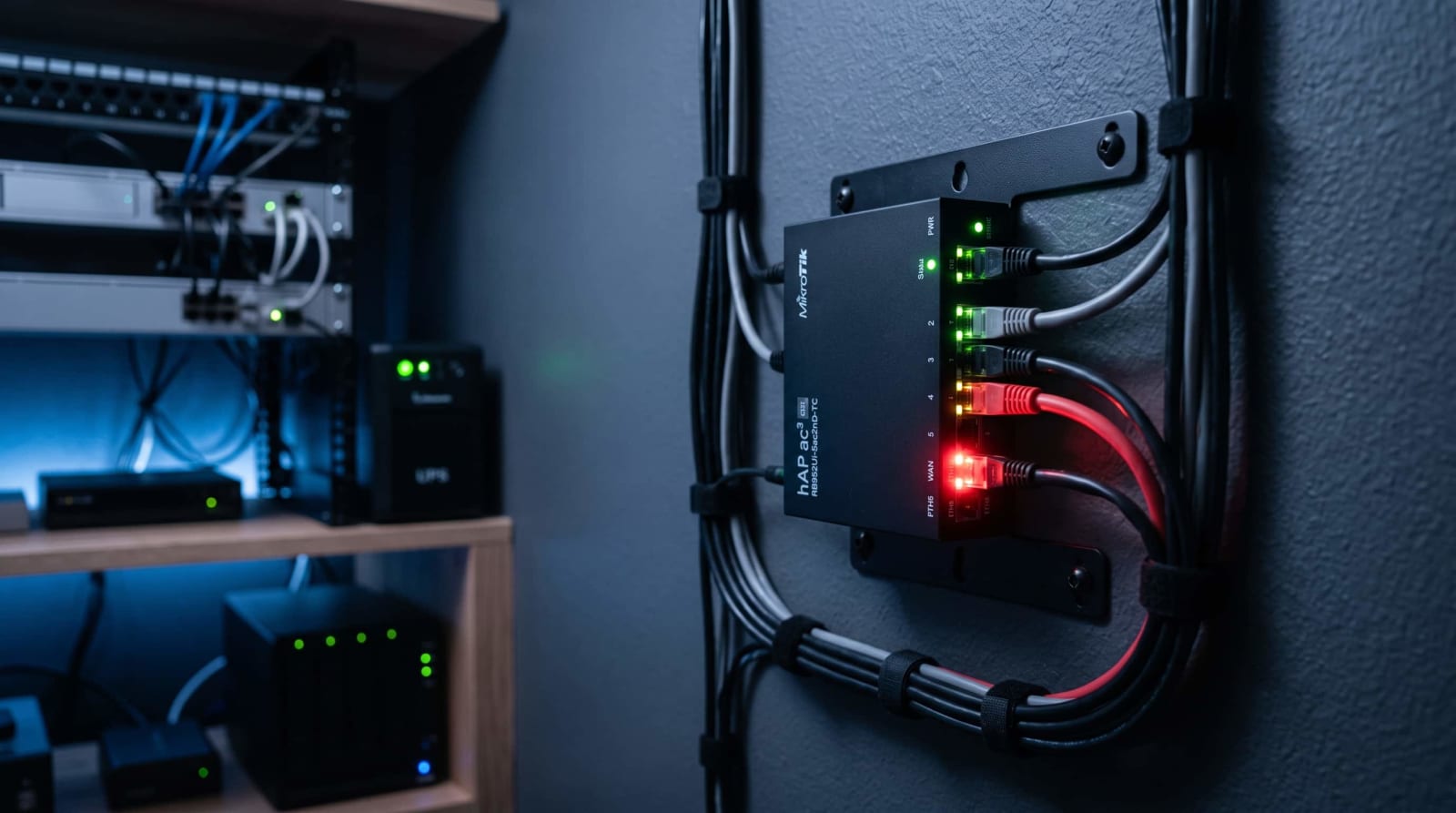
In the United States, October implies chillier garages, football on the television, and the ideal weekend to lastly make fun of that server whirring in the wardrobe. And it is National Cybersecurity Awareness Month (Source: CISA). It is possible that you left a port open in August, only on the weekend, and forgot to close it. These are seven tests, equating to an evening of work, on what the internet perceives and what to correct first.
Quick Answer: There are seven checks to a solid audit: scan your network externally, scan your router port forwards, change your logins to multi-factor sign-in, patch everything, lock down your hypervisor, slim your VPN routes, and test a backup restore. Do them in that sequence, as the checks in the first place indicate what those at the end must defend. Arrange some evening, and be certain to be surprised.
Is My Homelab Exposed to the Internet? Start With an Outside Scan
Check 1 is most frequently skipped: examine your network in a way that an outsider would. This is something that cannot be displayed in your own laptop as it is positioned behind the router and monitors all.
The fast way is as follows:
- Determine your publicly available IP address by typing in what is my IP on a device on your home Wi-Fi.
- Migrate to another network, such as phone hotspot or a small rented cloud server.
- Scan into your public address there. It can be done on a free tool called Nmap in a single command: nmap -Pn -p- YOUR.PUBLIC.IP
- Record all ports that respond.
Only scan networks you own.

Whatever answers can be found by the whole internet. Public addresses are probed by automated scanners all day long, and a forgotten port can hardly be kept secret long.
Follow two curveballs:
- Shared addresses (CGNAT): When the address on the status page of your router is different than the one you have seen on the internet, your internet service provider shares an address with many of its customers. Outbound traffic typically is unable to access you. Fortune, not protection.
- IPv6: Numerous providers in the U.S. have started issuing IPv6 addresses without NAT. Use nmap run again with nmap -6 on the IPv6 addresses of your devices and ensure that your router is blocking unsolicited inbound traffic.
A clean result is one which yields nothing, or what you intended to reveal, such as a reverse proxy on port 443. All the other stuff is on your fix list. Just transferred your media library? When moving to Jellyfin and leaving Plex, be sure to make sure that the old port forward did not not survive the transition.
How to Check Open Ports on Home Network Gear (and Close the Risky Ones)
Check 2 is a comparison between your scan results and what your router thinks it is doing. Log into the router administrator, typically 192.168.1.1 or 10.0.0.1 and find the following settings:
- Port forwarding (also known as virtual server or NAT): Eliminate any rule that you cannot explain.
- UPnP and NAT-PMP: These allow applications to open ports without consulting you. Switch them off, or, at least, go through the list of what has been already read.
- DMZ host: This forwards any unsolicited traffic to a single device. It should be off.
- Remote management: Internet access should be disabled, as an administrator.
- Firmware: Update it. The FTC consumer advice on home routers also suggests to change the default login and encrypt (WPA3 or WPA2) (Source: FTC).
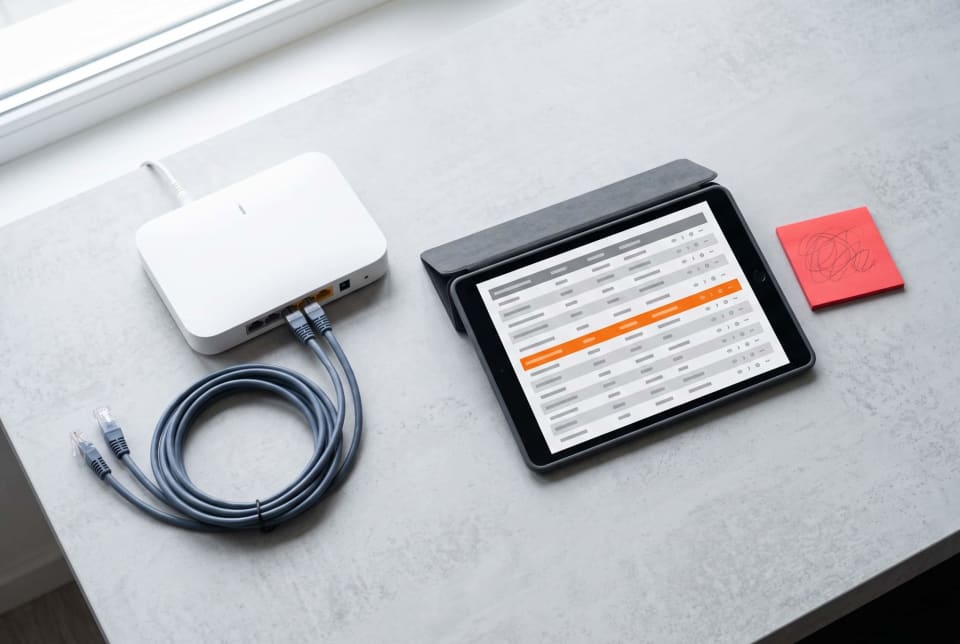
Now match each port that answered to a risk level:
| Port | Typical service | Risk if exposed | What to do |
|---|---|---|---|
| 22 | SSH remote login | Constant password-guessing attacks | Use keys, allow only from LAN or VPN |
| 445 | SMB file sharing (NAS) | Heavily targeted | Never expose |
| 3389 | Windows Remote Desktop | Heavily targeted | Never expose |
| 8006 | Proxmox web interface | Full control of every VM | Never expose, reach it by VPN |
| 8096 / 32400 | Jellyfin / Plex | Moderate | Use a VPN or a reverse proxy with login |
| 443 | HTTPS web apps | Depends on the app | Allow only through a patched reverse proxy with authentication |
There are our networking basics guides that can explain to us the terms such as NAT and VLANs in case the router menu is alien. The maxim: forbear nothing on which you can make a case. All fronts are back doors and a VPN provides you with one heavily guarded door rather than six.
How to Secure a Home Server: Logins, Updates, and Unused Services
Harden what is behind the doors, which are being mapped. Your box could be an outdated desktop or a mini PC but it is just a regular computer on a network. You may be more new at this, in which case our article on what a home server is is the primer.
Check 3: Tighten Logins and Turn On Multi-Factor Sign-In
Poor logins can do more harm than wizard adventures. Fix these first:
- Use a password management tool and assign each service a password. Federal recommendations prefer long passphrasesclimb and filtering of violated passwords to forced rotation (Source: NIST).
- Enable multi-factor sign-in on the router, NAS, hypervisor, password manager, and the email account that will reset each of them.
- SSH to keys. Once important key logins are verified in a second terminal, turn off the use of passwords by inserting the following lines into the sshd configuration file, /etc/ssh/sshd_config:
PasswordAuthentication no
PermitRootLogin no
Then re-initiate the SSH service in order to implement the change.
- To remove default and shared accounts, such as, but not limited to, the accounts of admin or pi.
Check 4: Patch What You Run and Retire What You Don't
Updates seal holes that the attackers are already aware of. CISA has a publicly available list of the currently exploited vulnerabilities by criminals (Source: CISA). Patch that day, if one of your products is listed on it.
- Enable auto-security patches on Debian and Ubuntu.
- Pull new container images and re-create containers every month.
- Update router and NAS firmware, most commonly forgotten by people.
- Unsubscribe to any service that you have not used within 90 days.
A single Docker gotcha: published ports default to listening on all network interfaces and they will even go around your host firewall rules (Source: Docker documentation). Instead bind them to the local machine or your LAN address such as -p 127.0.0.1:8080:80.
Secure Proxmox Home Server Checklist: Lock Down the Hypervisor
Check 5 is the most important when you operate Proxmox. The person that controls the hypervisor, controls all the virtual machines on it, and thus it should be given stricter rules than anything. Things to work on:

- Check your version. In case you are still on Proxmox 8, you are in a position to schedule the migration with our walkthrough to upgrade Proxmox 8 to 9 because the current releases receive security fixes.
- Turn on two-factor authentication on all accounts, including root. Proxmox allows authenticator-app codes, hardware keys (WebAuthn) and recovery keys (Source: Proxmox VE documentation). A hardware key typically costs $25 to $60 (Source: manufacturer retail pricing). Offline store recovery keys.
- Quit working with root on the daily basis. Make an named administrator account as the Administrator account, and leave root as a break-glass account.
- Activate the in-built firewall. It is not on default ( Source: Proxmox VE documentation). First add allow rules to the web interface (port 8006) and SSH (port 22) on your admin PC, otherwise you can lock yourself out.
- Do not forward 8006 or 22 on your router. Connect to your VPN.
- Limit API tokens. Assign all the tokens only what they are supposed to have, and get expiration dates.
- Separate the management network. In case your switch has VLANs, leave the hypervisor out of the segment with the smart TVs, cameras, and guests.
- Clean up the old users and storage. Open Datacenter, then Permissions, and delete anything you don't recognize.
Tailscale Subnet Routes Security Risk: What to Review Before You Advertise
Check 6 is concerned with convenience that expands quietly your exposure. A subnet router allows any authorized Tailscale device to connect to your entire home network, which contains cameras, printers, and smart TVs that do not have the capability to run Tailscale. That's handy. It also implies that a single lost phone or stolen laptop can lead to all things.
The risk is influenced by two facts. New tailnets begin with a liberal access policy allowing devices to communicate freely. In addition, Linux subnet router traffic is also shown to originate on the router by default and conceals the identity of what remote device did what (Source: Tailscale documentation).

Compare your setup with this table:
| Setting | Safer choice | Riskier choice |
|---|---|---|
| Routes advertised | Only the one subnet you need | Your entire home network |
| Access rules | Rules naming specific users, hosts, and ports | Default allow-all policy |
| Route approval | Manual approval in the admin console | Auto-approval for any route |
| Device keys | Key expiry on, old devices removed | Expiry off, stale laptops left in place |
| Router location | Dedicated small VM or container | Installed on the hypervisor itself |
To audit yours:
- Log in to the Tailscale administration console and find machines with advertised subnets.
- Eliminate all the approved routes that you cannot defend.
- Write permissions such that each individual or team only has access to the hosts and ports that they require.
- Uninstall devices that are not owned by you.
- Inquire about the necessity of having a subnet router. Direct installation of Tailscale on the three or four machines that you actually use is more tight. We have made a comparison between Tailscale and NetBird and Twingate in case you are considering alternatives.
How to Run a Backup Restore Test in One Hour
Check 7 is the one that helps you out when the other six have failed. A reserve that has never been reinstated is a dream but not a strategy. The federal ransomware guidance ↗ recommends encrypted offline backups, and frequent testing that the backups are operational (Source: CISA).

Following is a one-hour test:
- Choose two objects: a virtual machine and a folder of items that you cannot replace, such as family photos or tax forms.
- Revert the VM under a different ID with its network adapter disconnected, as a way of not colliding with the original.
- Start it and log in. Open some files and verify that the dates are correct.
- Time the entire exercise, and record the minutes. That's your real recovery time.
- Check your copies. Goal: 3-2-1: three copies, on two different storage types, one off-site or offline.
- Record the result and date and do the same every quarter.
When the restore fails, you have just discovered the most valuable issue in this whole audit. Our ransomware resistant backup system demonstrates how to create copies inaccessible to an attacker.
References
- Cybersecurity and Infrastructure Security Agency (CISA) – Cybersecurity Awareness Month: Official federal resources and guidelines dedicated to promoting national cybersecurity awareness.
- Cybersecurity and Infrastructure Security Agency (CISA) – Known Exploited Vulnerabilities Catalog: Authoritative database of software vulnerabilities that are actively being exploited and require immediate patching.
- Cybersecurity and Infrastructure Security Agency (CISA) – #StopRansomware Guide: Comprehensive federal guidance covering ransomware prevention, response, and system recovery.
- National Institute of Standards and Technology (NIST) – Digital Identity Guidelines (SP 800-63B): Official security standards and recommendations for password management and multi-factor authentication (MFA).
- Federal Trade Commission (FTC) – How to Secure Your Home Wi-Fi Network: Practical consumer advice on hardening wireless networks and securing home router settings.
- Proxmox Server Solutions GmbH – Proxmox VE Administration Guide: Official technical documentation detailing two-factor authentication (2FA) setup, firewall configurations, and default port management.
- Tailscale – Network Configuration Documentation: Official setup guides and reference material for configuring subnet routers and enforcing access control policies.
- Docker – Packet Filtering and Firewalls: Official guidelines explaining how Docker networking interacts with system firewalls and iptables routing.
- Yubico & Hardware Retailers – Hardware Security Key Specifications & Pricing: Manufacturer data and retail pricing for physical security keys (e.g., YubiKey). (Note: Hardware prices fluctuate, so please verify current rates directly on the manufacturer's store before publishing).
Conclusion
A homelab does not require a company budget to be safe, it just requires a periodic examination of what is exposed, who can access it, and what occurs when it fails. These seven checks should be completed once and then repeated after every quarter. The next step that is most likely to prove everything is to pick a VM and a folder and restore it today, then the next step is to run the backup restore test. So tell us what thou hast found.