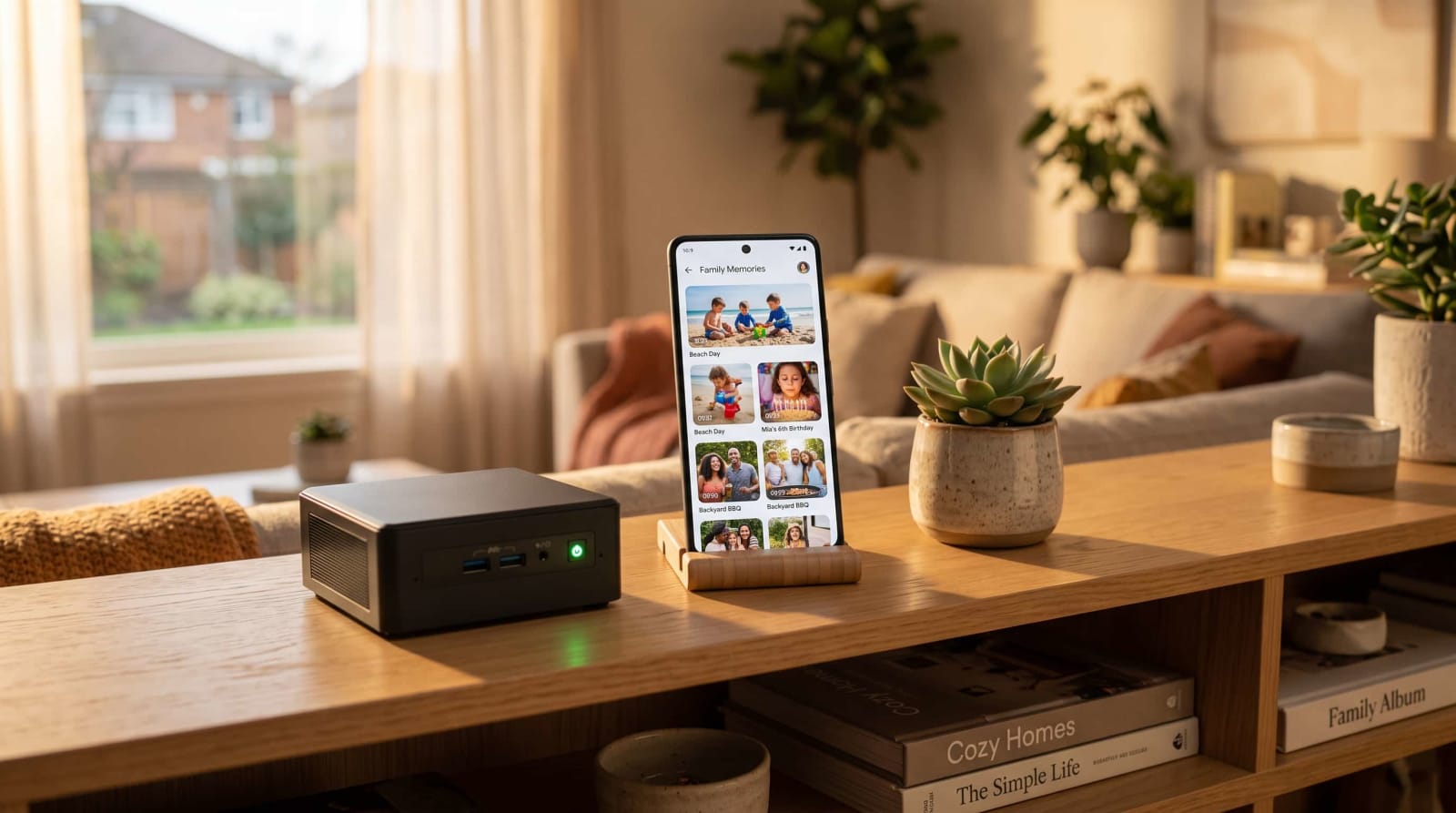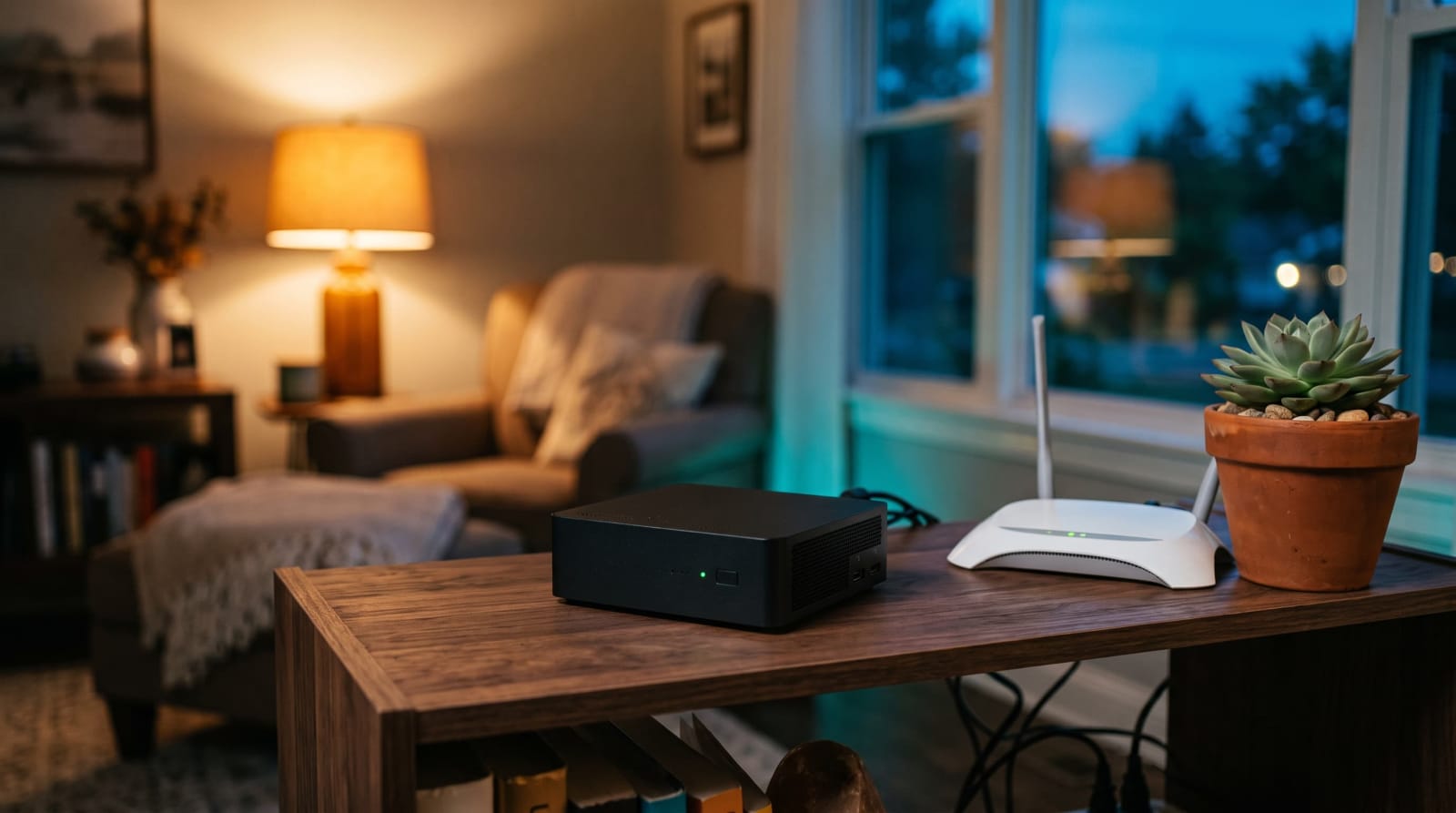
It is late in autumn, a Sunday night. You have a phone that tells you there is very little storage left, your monthly streaming bill has increased once again, and your family album is on a computer server that you have never laid your eyes on. Many Americans are silently correcting this by quietly setting up a small always on computer on a shelf next to the router. This guide will provide you with a plain-English tour: what it is, what it does, what it costs, and who should avoid it.
Quick answer: A home server is a small, constantly-on computer that hosts your data, delivers your media, and executes applications within your network rather than in the data center of another person. Imagine it as a mini cloud of your own on the shelf in your home. You pay a single hardware purchase, and a couple of dollars of electricity a month.
How Does a Server at Home Actually Work?
A server is merely a computer with a purpose. It does not sit and wait like you in front of it but waits till requested by your phone, your TV or your laptop and responds. Your phone requests a picture and the server transmits one. Your television requests a film and the server broadcasts it.
The device can be a small mini PC, an old laptop, a Raspberry Pi, or a box with multiple drive bays. It does not matter, as long as it remains on, remains connected to your router and performs some useful software.
Makes it all work with four pieces:
- Hardware: the computer, SSDs or hard drives to store information.
- Operating system: most are Linux, but Windows and storage-specific systems such as TrueNAS or Unraid are also popular.
- Apps: the software that does the job, like photo galleries, media players and file-sync software.
- Network: everything is connected by your router and by default only machines within your house can access the machine.
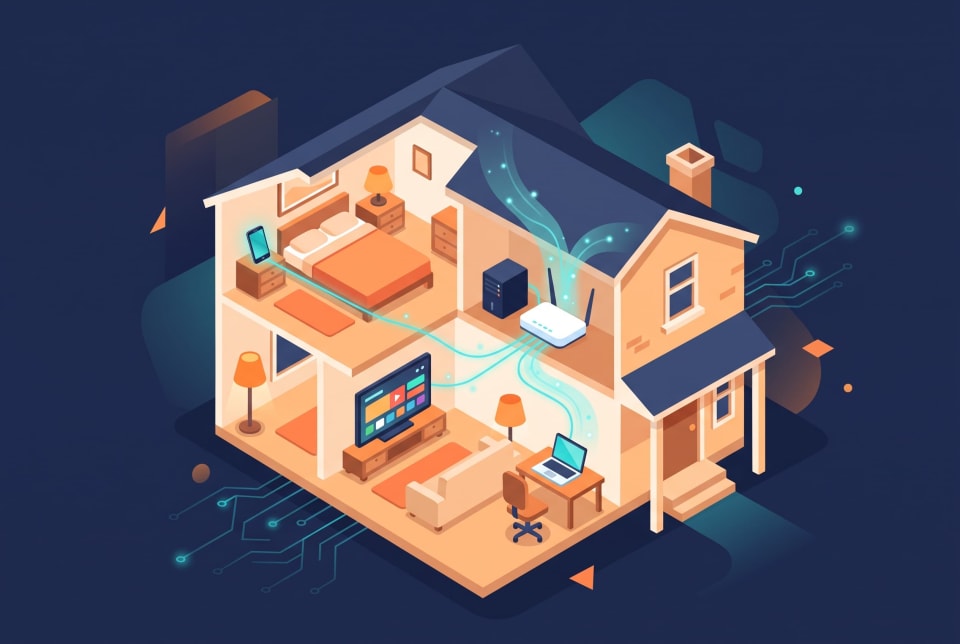
The latter is something that catches most amateurs off guard. Your server is in-the-box only to your home. It is up to you whether you choose to open it to the internet, and the vast majority of people ought to hold on that action. We have articles on our networking basics which define routers, IP addresses, and ports in case those terms are fuzzy.
Cloud services are servers as well. Google Photos and Netflix just operate on machines in a data center of another person. A home server puts that work on a shelf owned by you.
What Can You Do With a Home Server?
This is quite a long list, but seven occupations encompass what most households in fact perform:
- Share files and store. Create your own personal cloud to store documents, school assignments, and phone backups that any device within your Wi-Fi can access.
- Copy photos and videos. Photo apps that are self-hosted have the ability to automatically copy all the pictures on your phone so that your photos are not reliant on a monthly storage plan.
- Stream your own media. Applications such as Jellyfin and Plex will make a stack of movies, shows, and music look like a Netflix library. Already using Plex? Follow our instructions on how to migrate Plex to Jellyfin.
- Block ads and trackers. Pi-hole and AdGuard Home are also examples of DNS filters that remove ads on all of your devices, including Smart TVs.
- Operate smart home controls. Home Assistant allows lights, thermostats and sensors to continue operating even during an internet outage.
- Manage passwords. A self-hosted password vault is a place where you control your logins, provided you save them back up.
- Host game servers. The first project is a Minecraft world of the kids and their friends.
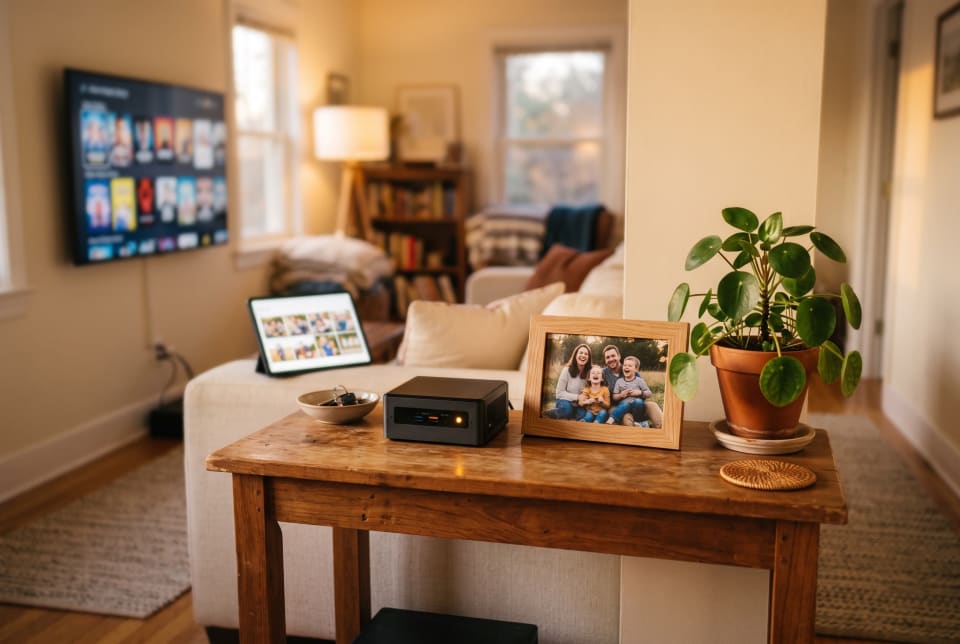
The majority of this software is free, and open source. Browse our self-hosted apps category to see what's popular right now.
And you do not need to have all the seven. Select the one that irritates you most of all and begin with it.
Home Server vs NAS: Which One Fits You?
A NAS (network-attached storage) is a server that is designed to fulfill a single purpose: to hold and distribute files. General-purpose server, such as mini PC, can store files as well, but also dozens of other applications can be run.
The border is blurred. Numerous current NAS boxes are capable of executing applications, and numerous mini computers are capable of multiple drives. Nevertheless, the two courses are day-to-day different.

| NAS | General-purpose server (mini PC or old PC) | |
|---|---|---|
| Main job | File storage, backups, sharing | Anything: media, apps, game hosting, storage |
| Ease of setup | Easiest, with guided web setup | Moderate, with some Linux or Docker learning |
| Typical upfront price | $150–$400 for the enclosure, plus $100–$300 per drive | $0–$500, depending on new or used |
| Flexibility | Good, but tied to vendor software | Excellent |
| Typical power draw | 15–40 watts | 8–35 watts |
| Best for | Photo and file backup | Tinkering and multi-app setups |
The easiest method to make a choice is here:
- Choose a NAS when you would like to have a sleek appearance of a storage system and your primary aim is to be safe and easy.
- Choose a mini PC in case you would like to use a lot of applications, learn and to stretch a tight budget.
- Choose whether you are the kind of person who will have a NAS as a storage device and a mini PC as an app device.
In more detail in our NAS and storage guides are drives, RAID, and enclosures.
Home Server Ideas for Beginners
The most appropriate debut project addresses a genuine irritation. These three are compatible with virtually any hardware.
1. Save Your Phone Photos.
Install a self-hosted photo app such as Immich. Take aim with your phone and make it duplicate new photos on your Wi-Fi. You can have a personal photo library, search and albums within an evening.
On one machine, a copy is not a backup however. Adhere to 3-2-1: 3 copies, on two types of storage, and one of them stored offsite (Source: CISA backup guidance). Our recovery and backup manuals demonstrate how to do it easily.
2. Create a Personal Media Library.
Install the free Jellyfin and point it at a folder of your own movies, shows and music. Launch the app in a smart phone, tablet, or television. It also automatically retrieves posters and descriptions, thereby making the library appear well-finished on the first day.
3. Block Ads on all Devices.
Install Pi-hole or AdGuard Home and assign it to your router as the DNS. All phones, televisions, and laptops around the house will be cleaner as they will be browsed without any installation. It is an easy task, and a cheap board is capable of doing the job.
What to avoid initially: opening your server to the world, email hosting and operating a public site. Those you add are real security risk, and should be addressed once you feel comfortable.
How Much Does a Home Server Cost?
| Tier | What you get | Upfront cost |
|---|---|---|
| Free to cheap | An old laptop or desktop you already own, or a used office mini PC | $0–$150 |
| Mid-range | A new mini PC with 16 GB of RAM and a 1 TB SSD | $250–$500 |
| Storage-first | A two-bay NAS enclosure plus two hard drives | $400–$800 |

New hardware is expensive as compared to a year or two ago. The prices of mini PCs and single-board computers were increased due to a global memory crunch and up to 2026 (Source: industry tech reporting and Raspberry Pi Ltd. price announcements). It makes used office computers and equipment that you already have particularly enticing. What to look in our hardware guides.
The cost that is constant is electricity. The U.S. residential rate has been ranging between 17 to 19 cents per kilowatt-hour, and operates at a higher rate in areas such as New England and California (Source: U.S. Energy Information Administration). A mini PC that idles at approximately 15 watts consumes approximately 130 kilowatt-hours annually, or approximately 2 dollars monthly. A multi-drive box with a power of about 40 watts costs nearer to $5 a month (Source: manufacturer spec sheets). The Department of Energy has energy-use guidance allowing you to plug in your own numbers.
Two extras worth spending: a battery backup (UPS) of about $60 to 150, and a second drive to do backups (Source: typical U.S. retailer listings).
Do I Need a Home Server? A Quick Self-Check
Well, the vast majority do not. But there are those who like to have one.
One of them will probably yield a lot when you:
- Purchase cloud storage and sick of the monthly payment.
- Big library of photos, videos or personal media files.
- Prefer not to have your data in big-tech possession.
- Likes to tinker or practice to work in IT.
- Has smart devices and would like them to operate in the event of internet outages.
You are likely to be able to skip it when you:
- Want it to work and have no maintenance.
- Only require minimal storage, as an inexpensive cloud plan is less complex.
- No time to spend an hour or two in a month to update and check up.
- Live where power outages are common, and not planning to purchase a battery backup.
Not sure? Test a low-risk test. Take an old laptop, install a single application and use it a month. In case you do it once a week, continue. You will have lost nothing but an evening, in case you forget that it is there.
Is a Home Server Worth It? Pros and Cons
The upsides:
- Privacy and control: your files are within your house.
- Long-term savings: a $300 installation which costs you a replacement of a $10-a-month storage plan will pay back within about three years when you include electricity.
- Speed: files can be transferred across your own network rather quickly, and there are no restrictions on uploading files to the internet.
- Skills: you learn hands-on networking, Linux and troubleshooting expertise.
The downsides:
- Maintenance: You do the updates, back ups and troubleshooting.
- Initial expense: new equipment is currently more expensive than normal.
- Security liability: an unpatched computer on the internet is a simple target.
- Reliability: any failed drive or a power blip will bring your services to a halt.
It can be done in a couple of habits to maintain security. Make sure that software is up-to-date, use strong unique passwords with multi-factor authentication (Source: NIST guidance), modify your router default settings, and leave the machine off the public internet (Source: CISA home network security guidance). The steps are taken in our privacy and security tips.
The Verdict: it is worth it when you value privacy, learning or canceling subscriptions and like to get your hands on it. It fits badly when you are in need of a zero-effort appliance. The safest in-between way is to begin with a used laptop and spend nothing.

References:
- U.S. Energy Information Administration (EIA) – Short-Term Energy Outlook (2026): National average data for residential electricity prices (estimated at 17–19 cents per kWh) and future energy forecasts.
- U.S. Department of Energy – Estimating Appliance and Home Electronic Energy Use: Official guidance and formulas for calculating the wattage-to-cost math for home servers and electronics.
- Cybersecurity and Infrastructure Security Agency (CISA) – Home Network Security Guidance: Best practices for securing routers, hardening networks, and implementing the robust 3-2-1 data backup rule.
- National Institute of Standards and Technology (NIST) – Digital Identity Guidelines (SP 800-63B): Authoritative standards and recommendations for setting strong passwords and using multi-factor authentication (MFA).
- Raspberry Pi Ltd. – Official News & Announcements: Coverage of 2026 hardware pricing updates and context regarding the global memory shortage affecting tech prices.
- Hardware Retailers & Manufacturer Specifications: Power draw data and hardware price estimates compiled from current 2026 listings across major U.S. retailers (e.g., Amazon, Best Buy, Newegg) and official product spec sheets. (Note: Hardware prices fluctuate rapidly, so it is recommended to spot-check current retail prices right before purchasing).
Conclusion
A little always on computer back at home can provide you with private storage, your own streaming library, and cleaner browsing and only a few dollars a month in power. You do not have to possess any expensive equipment or professional abilities, only a single project and a free night. Ready to try it? Follow our beginner setup guide and construct your first setup step by step.