

It is cold Sunday in November and you are sitting and you want to pull up a movie in your media server. Rather you get all the files renamed with some weird extension and a ransom note in each folder. That one box has your family pictures, your income tax filings and the years you spent working on it. This tutorial will show you a plain-English weekend project that will secure those files inaccessible to a criminal.
Quick Answer: Have three copies of your data on two types of storage, one offsite that no one can have any access to whether through deletion or editing of the data, even the person with my administrator password. Backup with an encrypted tool and stores the older versions in a cloud bucket with object lock enabled and perform a restore. This can be completed in one weekend by most households at about 7/terabyte/month.
The 3-2-1 Backup Rule Explained (Plus the Upgrade You Need)
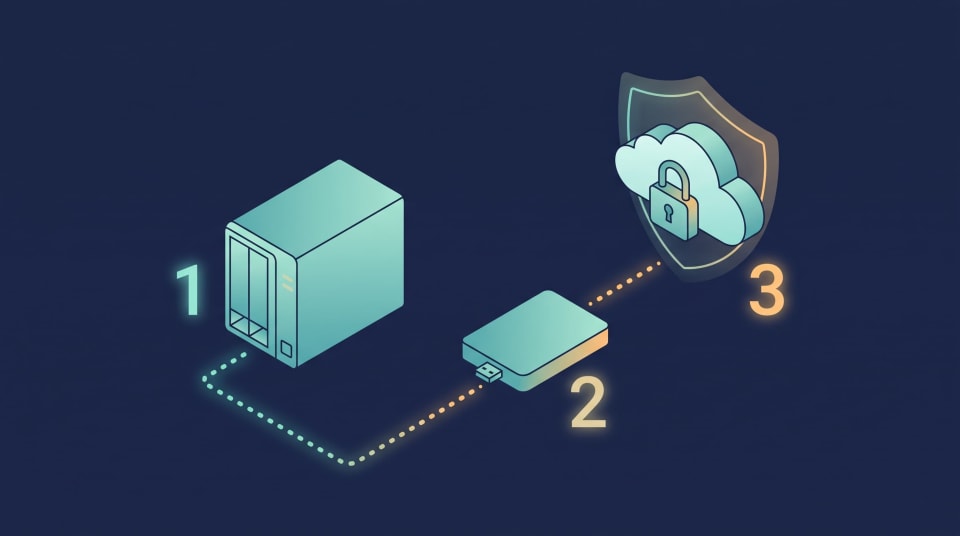
The one trend that has been used by backup professionals over the last several decades is to have three copies of your data, place them in one of two types of storage, and place one of those copies in a different location. It is effective because when one of the drives dies or the basement floods, it is not likely to erase everything at once.
Ransomware alters the math. In search of a backup, attackers intentionally seek a backup, as a victim one with a functioning backup has minimal incentive to pay. (Source: CISA ransomware guidance) Assuming that your backup drive is always connected and can be accessed using the same login, it will be encrypted as well as all the other data. That is why CISA ransomware guide emphasizes the importance of having offline, encrypted backups.
Then the old pattern requires to be upgraded in the following way: one of the copies must be incapable of being changed or deleted, and you must demonstrate it can be restored in a clean fashion. This is the appearance of a good layout:
| Copy | Where it lives | Ransomware risk |
|---|---|---|
| Copy 1: live data | Your NAS or server | High, since this is what gets attacked |
| Copy 2: local backup | Separate disk or second machine that isn't always mounted | Medium, safe only if disconnected or pull-only |
| Copy 3: offsite locked copy | Cloud bucket with lock enabled, or a trusted second location | Low, because it can't be altered during the lock period |
Not familiar with the terms? We have a home server explainer that explains the fundamentals of a home server.
Immutable Backups for Home Server Setups: Why They Beat Ransomware
Ransomware only typically requires a single item: valid credentials. It is also able to encrypt shared folders, delete snapshots and wipe any backup target it is able to log in to once inside. (Source: CISA and FBI advisories)
That power is removed by an unchangeable copy. Storage that has an option known as object lock allows you to specify a time limit that no one can edit or delete the stored files, say 30 days. That contains you, and it contains an attacker with your password. It is offered by Backblaze B2, Wasabi, and Amazon S3. (Source: provider documentation)
The following is the comparison of the protection layers:
- local snapshots (ZFS or Btrfs): they are good to roll back in case of any error, but a root user can remove them. Use them as a convenience and not as your final resort.
- Pull-based backups: Another backup machine logins in to the NAS and copies the data; therefore, the NAS never has the keys to the backup.
- Object lock in the cloud: It is the most secure alternative to the majority of households, since the service provider prevents deletion until the timer expires.
- Rotated offline drives: Inexexpensive and efficient, but again, it is a matter of your discipline.
One warning: a locked copy safeguards the ones you have already copied. It is unable to fix data that was encrypted prior to the backup. The reason is that you should keep numerous versions that are a few weeks old, not only the most recent one.
How to Protect Your NAS From Ransomware Before You Back Up
The backups are your insurance policy and the ideal is never to use them. The most common doors are closed in a few hours of hardening.
- Keep it off the public internet. Do not forward router ports to NAS. To access remotely, instead use a private VPN like Tailscale.
- Update firmware. Enable automatic security updates or do it once a month.
- Switch off what you don't use. You can also disable old file-sharing protocols, such as SMB1, UPnP, and any cloud relay that you do not need.
- Split your accounts. Use an account with the administrator privileges, which will never access file shares, and other accounts (everyday). Malware acquires the rights of whomever it infects.
- Enable 2-factor authentication on the administration panel and apply a password keeper to use special passwords.
- Plan backups in such a way that accidental backups and light infections are rolled back within minutes.
Attacks that reach consumer NAS devices have been recurrent and delivered via internet facing services and therefore exposure is your greatest vulnerability. (Source: CISA and FBI advisories) The ransomware guidance provided by the FTC will be a nice plain-language refresher to all members of your household. To get deeper into it, check out our NAS storage guides.
Restic vs Kopia Backup: Which Tool Should You Pick?

Backup software is the hardworking one. It ciphers your information, bypasses duplicating sections and maintains a record of snaps. Restic and Kopia are the two popular open-source tools ruling the self-hosting world.
They both encrypt locally and nothing is uploaded without being encrypted on your computer, so your cloud provider can never see anything but encrypted data. Both maintain versioned snapshots and deal with significant cloud storage systems.
| Feature | Restic | Kopia |
|---|---|---|
| Interface | Command line (third-party GUIs exist) | Command line plus built-in web and desktop UI |
| Scheduling | Use cron or a systemd timer | Built-in policies |
| Encryption | Client-side | Client-side |
| Deduplication and versions | Yes | Yes |
| Maturity | Older, widely documented | Newer, growing fast |
| Best for | Scripters and Linux fans | Beginners who want buttons |
Select Kopia when you desire a graphic dashboard and simple scheduling. Select Restic when you prefer straightforward scripts and a lot of community documentation. Both are a strong basis.
There's one gotcha. On a locked bucket, locked files cannot be deleted until their timer runs out; therefore, automatic cleanup jobs that delete old snapshots cannot run normally. Before you enable automatic pruning, it is important to read the documentation of your tool regarding locked storage, and to set your lock window to your retention policy.
Cheap Offsite Backup for Homelab: What It Costs

Thought to be costly, offsite storage does not necessarily need to be. Object storage charges are by the terabyte and you only pay what you save.
Backblaze B2 charges approximately 6.95 per TB per month, Wasabi charges approximately 7.99 and Amazon S3 Standard charges approximately 23. Both B2 and Wasabi have object lock. Wasabi provides a 90-day minimum retention to stored objects, which is important when you frequently delete data. Backblaze offers threefold downloads at no cost to what you save monthly, and thus, complete restore will do not often cause any unexpected expenses. tech-insider.
| Data stored | Backblaze B2 (~$6.95/TB) | Wasabi (~$7.99/TB) |
|---|---|---|
| 1 TB | $6.95 | $7.99 |
| 4 TB | $27.80 | $31.96 |
| 10 TB | $69.50 | $79.90 |
Prices fluctuate, so look at each provider before you buy.
The most convenient method of trimming the bill is to copy what is impossible to copy initially: photos, documents, password vault exports, configs, and databases. Missing out on movies and shows you might download again. A 10 TB library could be reduced to 500 GB of things that matter and can be afforded at approximately 3.50 a month.
Do not want any monthly bill? Even a drive to a relative, accessed via a VPN, is sufficient. You will only pay once in hardware, but you also have to maintain it, and you will have to configure it in such a way that your main NAS can not delete its snapshots.
How to Build It in One Weekend: Your Saturday and Sunday Plan

Saturday Morning (about 2 hours): Inventory and Lock Down
List what is not replaceable: photos, scanned documents, financial data, Docker compose files, application databases, and VM disks. Then follow the above hardening steps. Check to ensure you have a different administrator, updates are on, and you are not exposing anything to the internet.
Saturday Afternoon (about 3 hours): Build the Local Copy
Prepare a second disk or a second mini PC that can be used as the backup target. Install your preferred backup utility, aim it at the folders in your list and do the initial full backup. Then go on a nightly program. Provided you run virtual machines, back them up as well, and make a new backup before a significant upgrade of Proxmox.
Sunday Morning (about 2 hours): Add the Locked Offsite Copy
You should create a cloud bucket and enable object lock when you create it, before uploading anything. Begin with 30 days retention period. Grant access to only that one bucket with deletes permitted where the provider permits it. You can add the bucket as the second destination in your backup tool and begin the initial upload. A large initial upload may take the entire night or longer on average home upload speeds.
Sunday Afternoon (1–2 hours): Test and Set Up Alerts
Copy a single file, and a single entire folder to another place and test the results. Include a free monitoring ping, or sometimes referred to as a heartbeat check, such that an email or phone notification is sent in the event that a backup does not run.
How to Test Your Restores and Keep the Setup Healthy
A backup that you have not restored is only a wishful thinking. Next steps: make these habits a part of your calendar:
- Monthly: Restore one random file and open it.
- Quarterly: Restore a full folder, and boot restored VM in case you use them.
- Time it. A complete restore will take 18 hours, and this fact affects your planning.
- Guard encryption password. Store it in a password keeper and on paper in a secure location. In case it gets lost, no one can access your encrypted backups.
- Write 1 page recovery note: This includes where the backups are, how to log in, and what to restore first. Keep it out of the NAS.
- Review yearly. Swivel cloud keys and re-examine your lock window.
The NIST advice on how to recover following a devastating attack emphasizes testing recovery and verifying data integrity rather than copying it. In the event of being hit, the Internet Crime Complaint Center is a U.S. government agency where the victims may report. To have additional walkthroughs, view our backup and recovery guidelines.
References
- Cybersecurity and Infrastructure Security Agency (CISA) – #StopRansomware Guide: Official joint advisories and federal guidelines for preventing, responding to, and recovering from ransomware attacks.
- FBI Internet Crime Complaint Center (IC3) – Ransomware Reporting & Advisories: The official federal portal for tracking ransomware trends and filing cybercrime complaints.
- NIST National Cybersecurity Center of Excellence – SP 1800-11: Data Integrity: Comprehensive framework on recovering from ransomware and other destructive cyber events.
- Federal Trade Commission (FTC) – Ransomware Guidance for Businesses & Consumers: Official advice on how to protect systems and respond effectively to ransomware threats.
- Backblaze – B2 Cloud Storage & Object Lock: Pricing details and technical documentation for implementing immutable backups using B2 Object Lock.
- Wasabi Technologies – Cloud Storage Pricing & Object Lock: Cost breakdown and configuration guidelines for securing data with Wasabi's write-once-read-many (WORM) features.
- Amazon Web Services (AWS) – Amazon S3 Pricing & Object Lock: Official AWS documentation on storage costs and enabling S3 Object Lock to prevent data deletion or modification.
Conclusion
No rack of gear or huge budget is required to be safe. Retain 3 copies, one of which should be unchangeable, and rehearse a restore until you need one. Do it this weekend and a ransom note can be a hassle rather than a catastrophe. After you have your backups, make sure you have locked the device where you store your files: go through our NAS security audit checklist next and seal the holes you have left open.