
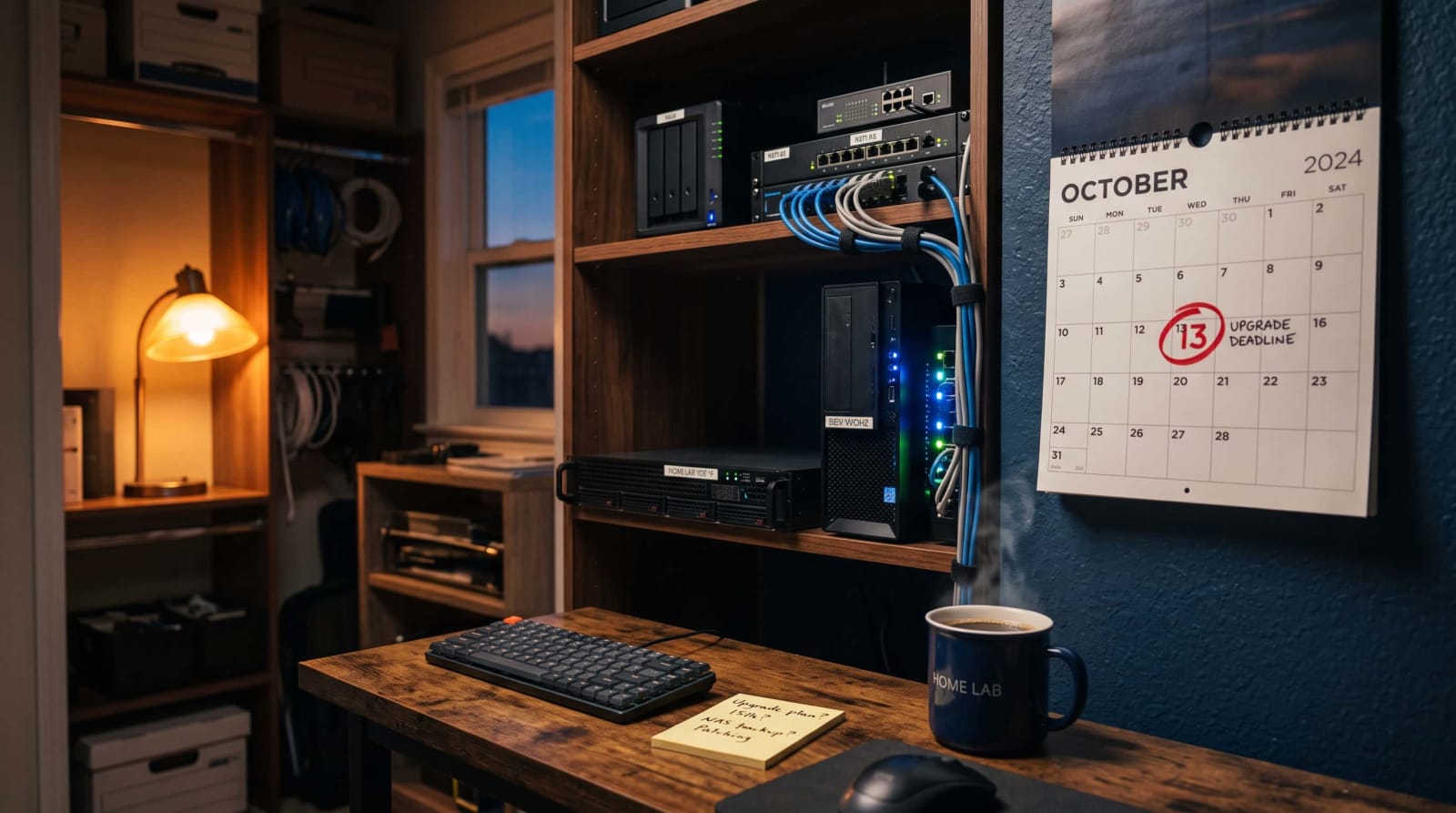
It is early October, the football is on every TV and the home lab you constructed last winter is still buzzing in the closet. Then there comes a reminder; October 13. Unless you just share files at home, are practicing Active Directory, or are experimenting with Hyper-V, that date is right at you. There is nothing like panicking since nothing goes wrong over one night and you have time to strategize.
Within few minutes you will know what will be altered, what will remain and whether upgrading your setup is worth it or not.
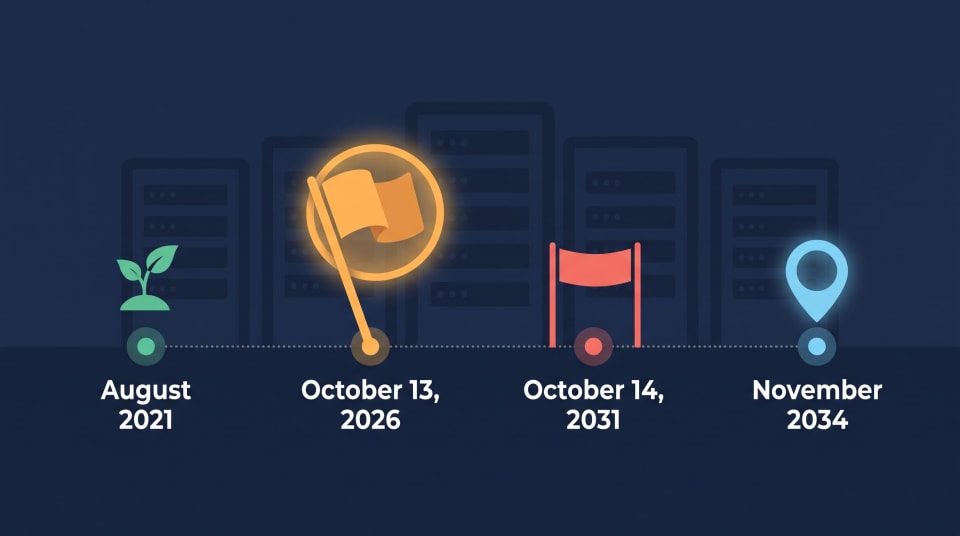
Quick response: Microsoft ends the mainstream of the 2022 release of its server operating system on October 13, 2026. New features and non-security fixes cease, and security patches continue until October 14, 2031. In the case of most home labs, nothing is broken overnight, and the actual release that determines when to upgrade to a new release is 2025.
Windows Server 2022 End of Support Timeline: Key Dates
Microsoft releases each version of server under their Fixed Lifecycle Policy. The policy will guarantee at least five years of full mainstream support and then a longer period with certain products ( Source: Microsoft Lifecycle documentation).
Server 2022 launched on August 18, 2021. The first milestone will be achieved this month, and the second will be in 2031. The official lifecycle page of Microsoft provides all the dates of the editions that are of interest, such as Standard, Datacenter and Essentials.
| Milestone | Server 2022 | Server 2025 |
|---|---|---|
| Launch date | August 18, 2021 | November 1, 2024 |
| Mainstream phase closes | October 13, 2026 | November 13, 2029 |
| Extended phase closes | October 14, 2031 | November 14, 2034 |
Consider it two countdowns. The full service period ends on October 13. The actual finish line is October 14, 2031, when regular patches cease wholly.
These times are published by Microsoft in the Pacific Time. When you are on the East Coast, then consider the cutoff as the end of the day on October 13 and then plan on that.
Is Windows Server 2022 Still Supported After Oct 13?
Yes. Your server continues to get security updates until October 13, a period of five years, meaning that it does not become unsafe overnight. Microsoft merely puts the product into a maintenance cycle.
Your licenses remain active, your roles continue operating and Windows update continues to provide monthly patches. The transformation is regarding what Microsoft will create and repair on your behalf and not whether the lights will remain on.
Windows Server 2022 Extended Support End Date: Oct 14, 2031
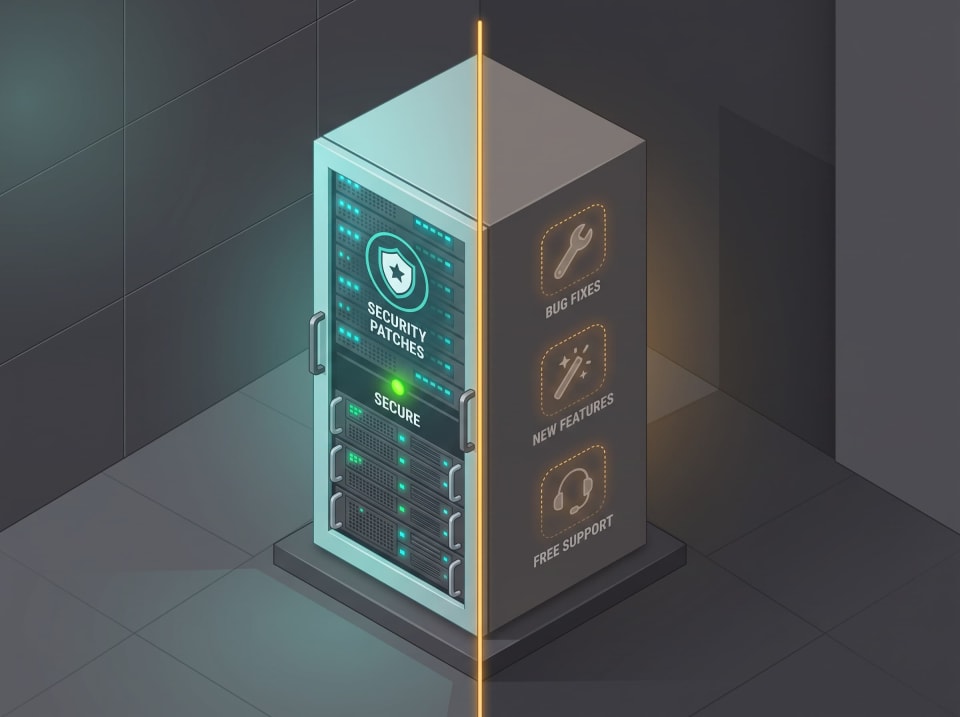
The long term support begins immediately after the mainstream period ends and continues until October 14, 2031. This is what you retain and lose, based on the policy of Microsoft:
| Type of help | Mainstream (until Oct 13, 2026) | Extended (until Oct 14, 2031) |
|---|---|---|
| Security updates | Yes | Yes |
| Non-security bug fixes | Yes | No |
| Design change and feature requests | Yes | No |
| Free incident support from your license or a subscription | Yes | No |
| Self-help articles and paid support | Yes | Yes |
The moral of the story is quite straightforward. The only thing that does not stop in those five years is security patches, and all the others are made thinner.
After October 14, 2031, regular patches stop. It is a separate program, not a promise, that Microsoft has sold paid Extended Security Updates to some older releases (Source: Microsoft Lifecycle documentation).
What Happens After Mainstream Support Ends for Home Labs?
On the first day you will not see anything. Your shares are working, the server is booted, and patches are getting patched on Patch Tuesday.
The gradual transformations can be observed in the next months and years:
- Non-security bugs stay unfixed. Microsoft will not patch a quirky driver or role service that bothers you.
- No new features. Only newer releases are improved.
- Free help fades. Support of incidents which is included in a license or a developer subscription ceases, but paid cases and self-help pages do not ( Source Microsoft Fixed Lifecycle Policy).
- Third-party vendors switch gears. Backup agents, antivirus, and management applications tend to test latest releases initially.
This is all not a crisis. It is a slight push and it allows you five years to run on your time.
Drift is the actual threat. An unused server that has gone years without being touched is likely to accumulate unpatched patches, forgotten passwords and abandoned open ports. Unless you are quite familiar with the fundamentals of a home server, this is a convenient time to document what your machine actually is doing.
A little routine is beneficial. Choose a single night out of the month, check to make sure there were no updates pending, and make sure that the backup has really completed by the time you get home last night. Eighteen hours of normalization is a weekend of clean up.
Windows Server 2022 vs 2025: What's Different
Lifespan is the largest disparity in the case of a home lab. The 2022 release has three years of security patches and 2025 release has approximately three years of full support and three years of security patches.
| Area | Server 2022 | Server 2025 |
|---|---|---|
| Mainstream phase closes | October 13, 2026 | November 13, 2029 |
| Security patches until | October 14, 2031 | November 14, 2034 |
| Direct in-place upgrade from | 2016 and 2019 | 2012 R2, 2016, 2019, and 2022 |
| Hotpatching (fewer reboots) | Azure Edition only | Offered through Azure Arc enrollment |
| Security and identity | Mature and well documented | Next-generation Active Directory, security baseline, drift protection |
| Tutorials and community help | Years of guides | Growing quickly |
Essentially, all the accessible information is supported and formatted into a table to facilitate easier reading (see appendix 1).<|human|>Basically, all the available information is justified and arranged into a table to help in easier reading (see appendix 1).
In its new release, Microsoft also notes faster storage, easier networking, and GPU partitioning. All of that is more business-oriented, thus, do not be under pressure to pursue all features.
Hotpatching has a brief mention. On self-managed machines, it operates via Azure Arc which implies a cloud account and paid subscription, hence, verify the present-day prices before you rely on it. The most recent release can be read in the complete date list on the lifecycle page of Microsoft of the 2025 version.
Should I Upgrade to Windows Server 2025?
Quick response: most likely, not this week, but maybe. You get up to 2031 to implement security patches, therefore, it is a better move to upgrade when it is planned and not in panic.
Upgrade soon if…
- Your server is the one that your household relies on, such as file shares, DNS, DHCP, or a small domain.
- You desire as long a patch runway as you can get, before you must think of this anew.
- You are training to work. Employers will be using the new release over the years.
- You are on an older version such as 2016 or 2019 and just need to jump forward once.
Wait a few months if…
The compatibility with an antivirus tool, a backup agent, or a hypervisor driver is not yet verified.
- You do not have a tested backup of the machine.
- You are in the midst of another large project such as updating hardware.
Leave it alone if…
- It is a throwaway test VM that you rebuild often.
- There is no internet exposure and there is nothing precious.
- The patches up to 2031 accommodate you and you would need the time to do other things.
In the event that you are still undecided, here is the rule of thumb: the longer your house would be without the server in a day, the faster you would upgrade it and the more you would practice. A laboratory that no one depends on can wait. A box containing family photos and containing your network logins should be moved first.
The other factor is budget. Each server upgrade requires a license, as compared to a windows PC upgrade (Source: Microsoft Learn upgrade documentation). In case you wish to test the latest release, there is a free 180-day trial version of Microsoft ( Source: Microsoft Evaluation Center). Install it new on a virtual machine, as Microsoft does not allow upgrading an existing server to an evaluation copy.
How to Prepare and Upgrade Safely
Microsoft provides in-place upgrade that allows you to upgrade the 2022 release directly to 2025 release, meaning that you will not have to start over. See which versions are upgrades supported by Check Microsoft. The following is a step-by-step plan that is quiet:
- Back up everything. Make a complete backup and in case of virtualization, a snapshot. A snapshot is a safety net, not a backup, hence you need both.
- List your roles and apps. List all the roles, planned processes and third party applications that the server executes.
- Install all the patches. Always update the server first and then you can try something larger.
- Disable NIC Teaming. Microsoft recommends to switch it off prior to the upgrade and switch it on after the upgrade ( Source: Microsoft Learn upgrade documentation).
- Clone and rehearse. First upgrade a copy. When your lab is based on Proxmox, ensure that the host itself is up-to-date by reading our tutorial on how to upgrade Proxmox version 8 to version 9.
- Install the in-place upgrade. Installation media. It is important to remember that the edition will remain unchanged by default, and will not be able to switch between Server Core and desktop version during the upgrade (Source: Microsoft Learn upgrade documentation).
- Verify everything. Check Windows Update, all the events and all the roles as well as your backup job.
- Retain the snapshot during a week. Erase it when you are certain that it is functioning.
If something goes sideways, our troubleshooting tips collection is a good place to start.

Home Lab Safety Net: Snapshots, Backups, Network Isolation.
No matter how soon or how long you upgrade, there are some habits that keep your lab healthy. They are extremely cheap and compensate in each migration.
- Create a backup to rely on. Store at least three copies of your data on two types of storage, at least one offsite. Our tutorial on how to make our homelab backup ransomware-resistant demonstrates how to ensure that one of the copies is not accessible to an attacker.
- Allow the server a lane of its own. Isolate it to a different network segment such that a hacked smart TV does not communicate with your domain controller. Bypass port forwarding as well. A personal meshnet is more secure, and Tailscale, NetBird, and Twingate can be compared to assist you in choosing one.
- Be up-to-date on actual threats. Hackers cherish backward-looking machines. CISA maintains a publicly available list of actively used vulnerabilities to which you can compare your software (Source: CISA).
- Set a patch rhythm. Automatically update rather than updating when you think of it. By having a monthly maintenance window (preferably a quiet Sunday evening) the number of surprises is kept minimal and the eventual migration is much less stressful.
- Conduct a frequent checklist. We use our homelab security checklist to address passwords, updates and exposure within an hour.

References
- Microsoft. Windows Server 2022 – Microsoft Lifecycle. Microsoft Learn: https://learn.microsoft.com/en-us/lifecycle/products/windows-server-2022
- Microsoft. Windows Server 2025 – Microsoft Lifecycle. Microsoft Learn: https://learn.microsoft.com/en-us/lifecycle/products/windows-server-2025
- Microsoft. Fixed Lifecycle Policy. Microsoft Learn: https://learn.microsoft.com/en-us/lifecycle/policies/fixed
- Microsoft. Plan Your Windows Server Upgrade Path. Microsoft Learn: https://learn.microsoft.com/en-us/windows-server/get-started/install-upgrade-migrate
- Microsoft. Windows Server 2025 – Microsoft Evaluation Center. https://www.microsoft.com/en-us/evalcenter/evaluate-windows-server-2025
- CISA. Known Exploited Vulnerabilities Catalog. https://www.cisa.gov/known-exploited-vulnerabilities-catalog
Conclusion
October 13 is not a precipice, but a milestone. Five years of security patches, features, bug fixes and free support are being phased out of your server. The intelligent upgrade is a gentle, time-tested upgrade at your own pace, with a good backup. In case your lab is Proxmox, begin to prepare the host: Read the Proxmox 8 to 9 upgrade guide next, and then plan your server migration.